
Automated invoice data extraction is all about getting your invoices to “do the work” for you without anyone manually keying in line items or totals. Behind it, there’s the expectation that your existing finance stack (your accounting software, AP tool, and document storage) can “talk” to the systems that read and process invoices. If your data is clean and the process is reliable, you’ll be far more likely to trust automation with tasks that humans used to handle. It might be extracting vendor details, PO numbers, tax amounts, or full line items. Whatever the fields, you’re leveraging automation to turn static invoice files into structured, usable data.
Most of the time, you’ll use a combination of tools to get there—like AI-powered OCR platforms, AP automation software, and workflow tools that glue everything together.
If you aren’t already extracting data from invoices automatically, you should: invoices are some of the most repetitive, rule-driven documents in your business, and they’re among the easiest to automate for significant time and cost savings.
There are platforms available to help you automate invoice data extraction, like Automa, it can integrate with your accounting software, making it easier to build a fully automated, end-to-end invoice processing pipeline.
What is invoice data extraction?
Invoice data extraction is best thought of as an easy-to-use wrapper around a complex set of document understanding technologies. It looks simple: you upload a PDF, scan a paper invoice, or forward an email attachment, and the system pulls out what you care about, such as vendor names, dates, invoice numbers, line items, taxes, totals, and more.
Invoice data extraction has to figure out which parts of the page are headers, which are line items, which numbers are totals versus subtotals, and which currency or tax scheme applies. It is coordinating OCR (optical character recognition), layout analysis, and AI models. From the same interface, it can capture data from a one-page PDF from a local supplier, a multi-page invoice from a global vendor, or a photo of a receipt taken on a phone.
Instead of manually typing data into your ERP, accounting software, or approval workflow, invoice data extraction lets you feed the system raw documents and receive structured, machine-readable output, such as JSON, CSV, or direct API records. It doesn’t matter much whether the invoice is a scanned image, a native PDF, or buried in an email thread. The goal is the same, to turn unstructured or semi-structured content into clean, reliable fields you can automate around.
Through technology of invoice data extraction, the complexity stays hidden: you just see faster processing, fewer manual errors, and invoice data that’s ready to plug directly into your automation workflows.
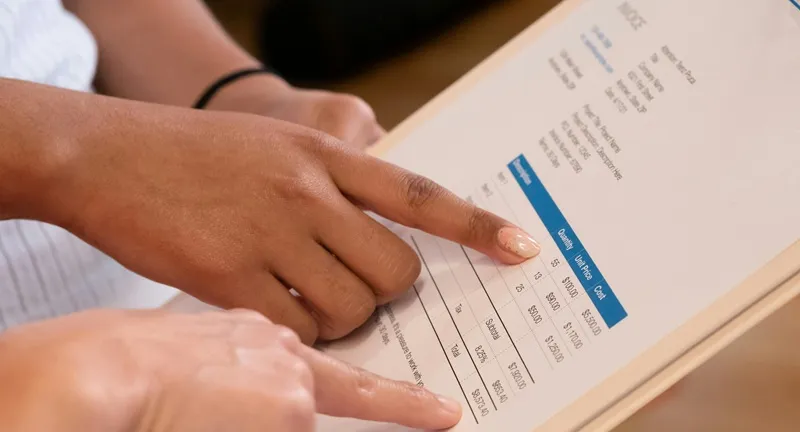
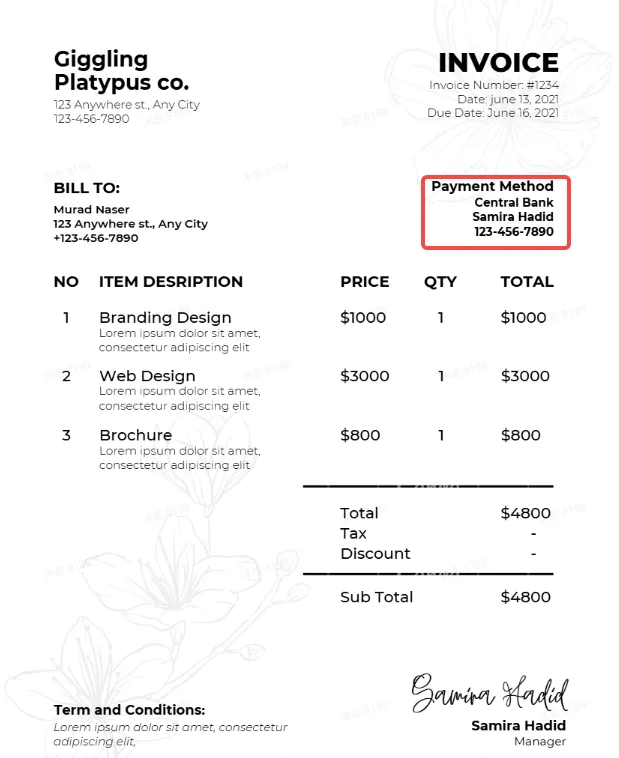
Invoice Fields You Must Capture
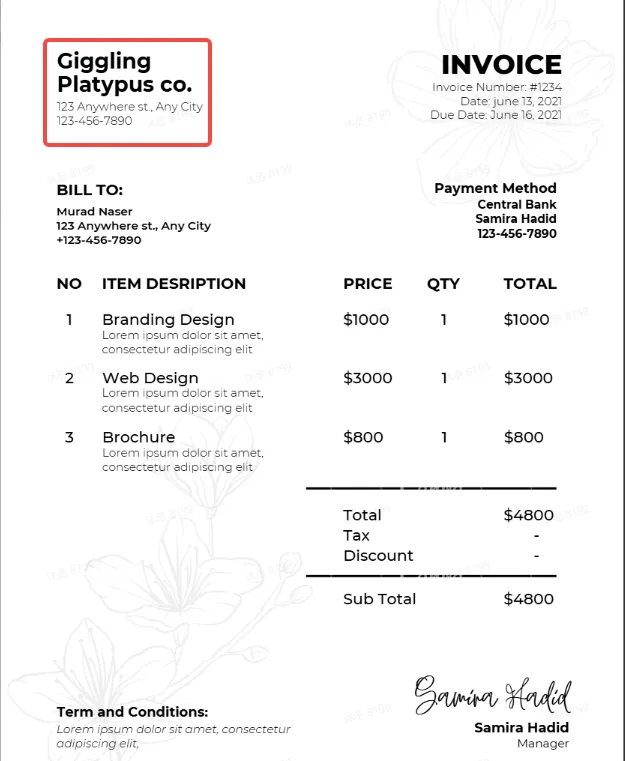
Header and supplier details
These are the foundational identifiers of the invoice. Typically include:
Supplier / vendor name
Company address
Contact email / phone
Business registration number
VAT / GST / tax ID
Logo
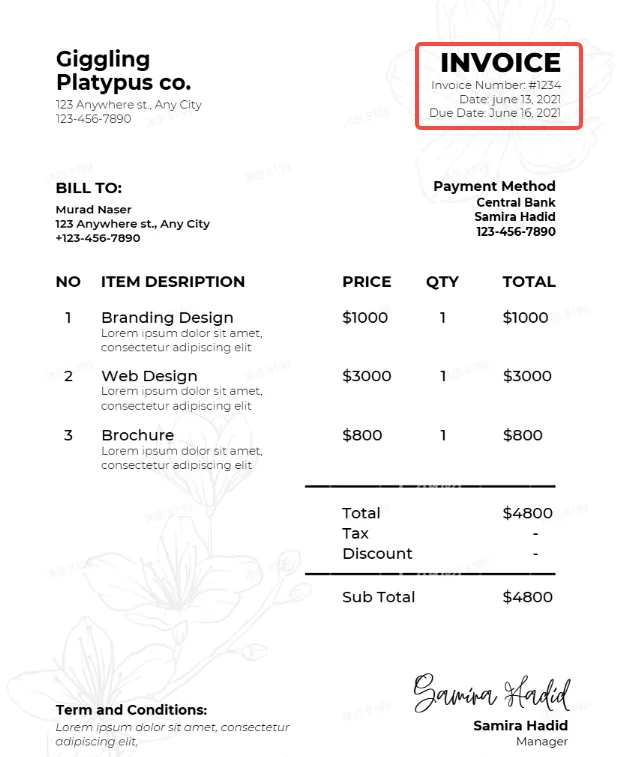
Dates, IDs, and references
Every finance automation flow depends heavily on date and identifier accuracy. Capture:
Invoice date
Due date
Delivery date (if shown)
Invoice number
Purchase order (PO) number
Reference number / customer ID
Shipment or service period
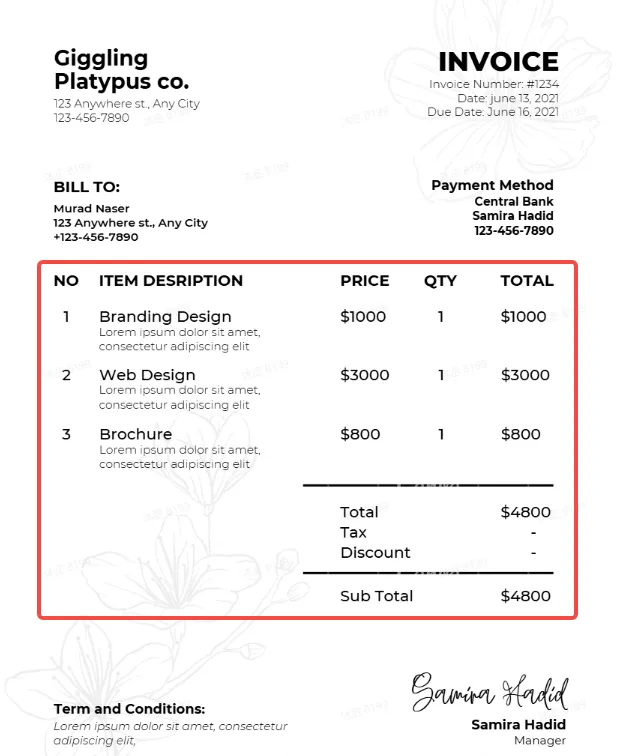
Line-item and tax breakdown
This is the core of invoice interpretation and the most detail-rich section. Capture:
Item description
SKU / product code
Quantity
Unit price
Line total
Discounts
Tax rate per line
Tax amount per line
Subtotal
Total with tax
Payment terms and methods
Important for predicting cash flow and avoiding late fees. Capture:
Net payment terms (e.g., Net 30, Net 45)
Early-payment discount terms (e.g., 2/10 Net 30)
Accepted payment methods (bank transfer, card, check)
Bank account details (IBAN, SWIFT, routing number)
Additional custom fields
Different vendors often include extra details. Capture whenever present:
Project codes / cost centers
Contract references
Delivery notes
Internal notes
Currency
Exchange rate
Freight / shipping charges
Surcharges / service fees
Common challenges of invoice data extraction
Poor scan quality and low-resolution images
If you get the data out of invoices by hand, it can make your accounts payable process unreliable. The quality of scans and the clarity of images often stops traditional OCR tools from accurately capturing important information like invoice numbers, due dates and tax amounts. It will cause problems like having to enter and correct data more than once, and delays in approving invoices.
Highly variable vendor layouts
The fact that vendor layouts can vary a lot makes things more complicated. Each supplier may use different formats, field positions and document structures. As your vendor base grows, it becomes difficult to use templates or rules, as they cannot be made to fit every situation. This makes it hard to make sure that AP workflows are standard and that consistent controls are in place.
Handwritten notes and stamps
Handwritten notes, stamps and free-text comments make things even more complicated. People who approve invoices often add notes by hand, like "urgent," "disputed," or references to the company's internal cost centres. These markings are very important for correct coding and routing, but are usually hard for normal systems to understand.
Handling multiple languages and scripts
For global organisations, dealing with lots of different languages and writing systems is always a challenge. Invoices can be written in different languages and can show different amounts in different currencies and tax systems. If you don't have smart software that can automatically identify and process content in different languages, AP teams have to depend on local knowledge and do the translation themselves. That' why your team makes things slower and more likely to have mistakes.
How to Extract Data From Invoices Automatically?
Way 1 Extract Data From Invoices with Automa ( AI-powered)
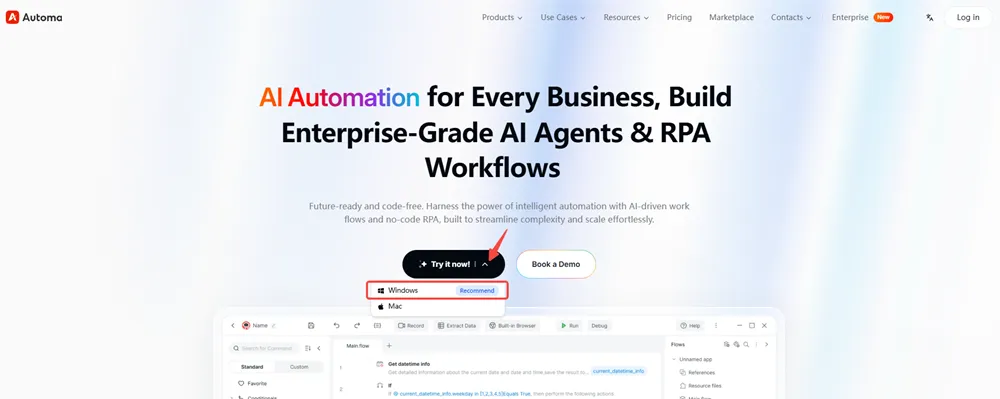
Step 1: Download Automa. Download the software version suitable for your computer from the Automa website. The following demonstration is for the Windows version.
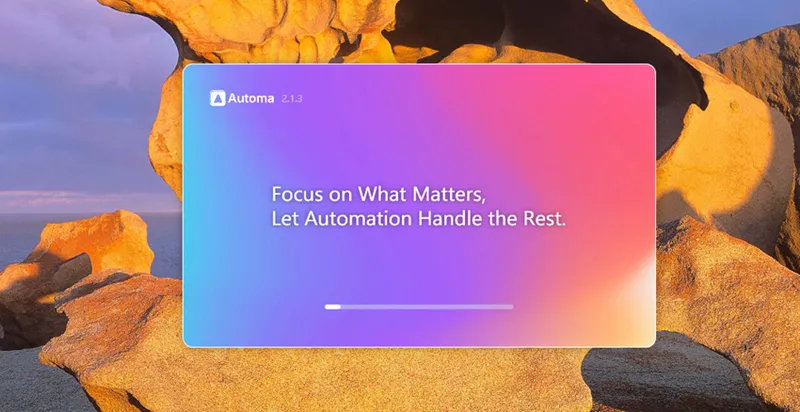
Step 2: Run Automa. When you run Automa on your computer, you will see a loading page like the one shown below.
Step 3: Login. You can log in to Automa directly using your Google or GitHub account. Alternatively, you can register a new account using your email address.

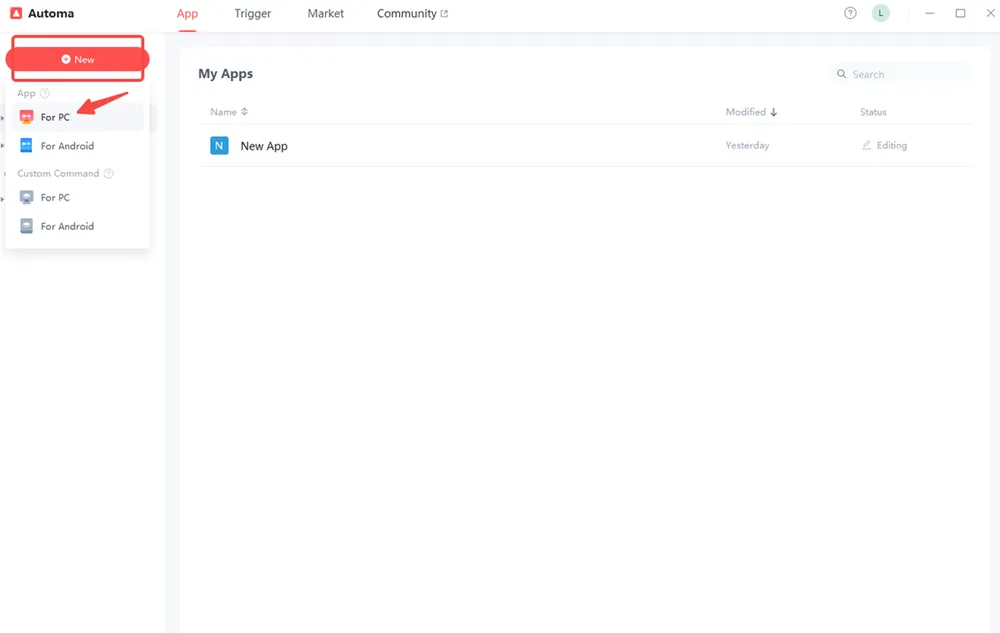
Step 4: Create a new app. Click the "+ New" button to create an application "For PC".
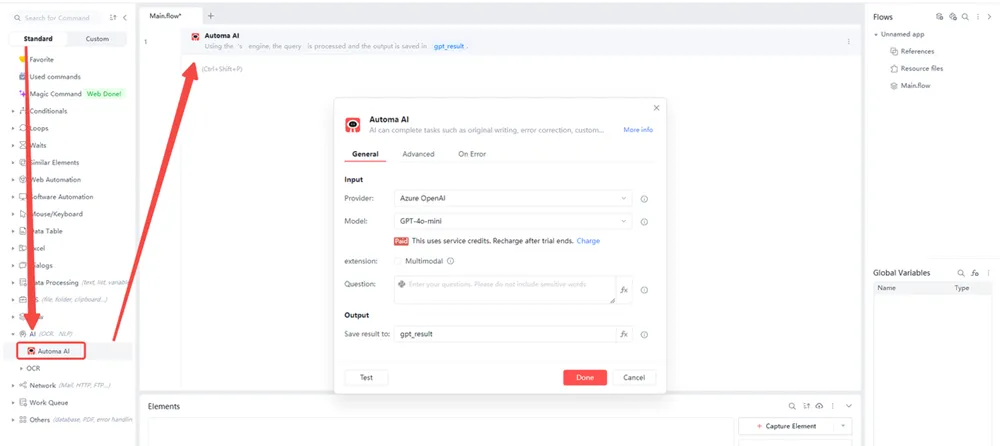
Step 5: After entering the application setup program, select "Standard," click "AI," and find "Automa AI" in that directory. Drag the module into the middle editor; a pop-up window will appear. We will use Automa's built-in AI function to extract invoice data.
Step 6: In "Position" and "Model", select the large language model you need. In "Extension", check "Multimodal", and then "Image path" will appear below. Upload the invoice from which you need to extract data here. Finally, add the prompt below in "Question", click "Done", and the AI will automatically extract the data you need from the invoice.
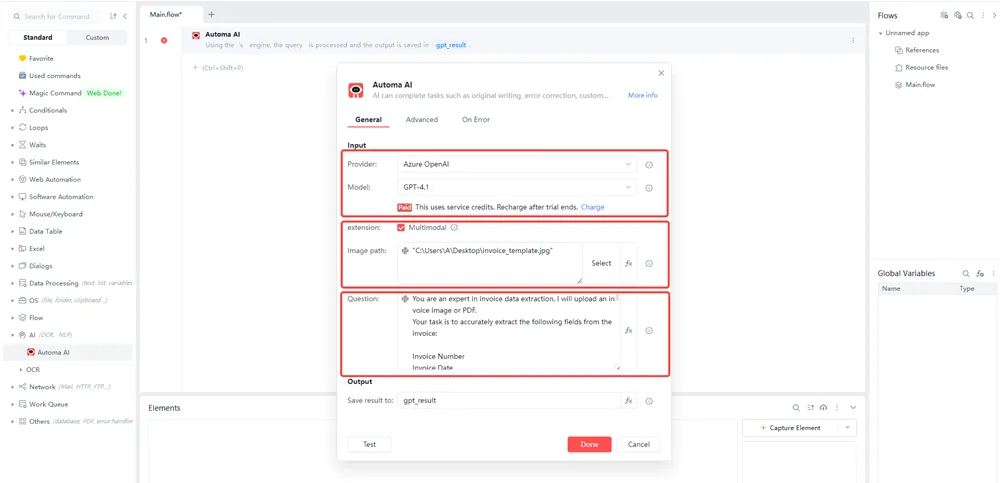
Prompt
You are an expert in invoice data extraction. I will upload an invoice image or PDF.
Your task is to accurately extract the following fields from the invoice:
Invoice Number
Invoice Date
Due Date
PO Number
Vendor Name
Vendor ID
Customer Name
Invoice Type
Payment Method
Payment Date
Subtotal
Tax Amount
Total Amount
Currency
Requirements:
Read the invoice and extract each field with the most accurate value possible.
If a field is missing, return null for that field.
Output the result strictly in JSON format.
Ensure every field name exactly matches the list above.
Do not add extra explanations—only output the JSON.
Example output format:
{
"Invoice Number": "",
"Invoice Date": "",
"Due Date": "",
"PO Number": "",
"Vendor Name": "",
"Vendor ID": "",
"Customer Name": "",
"Invoice Type": "",
"Payment Method": "",
"Payment Date": "",
"Subtotal": "",
"Tax Amount": "",
"Total Amount": "",
"Currency": ""
}
Note: You can add the required invoice data in the prompt.
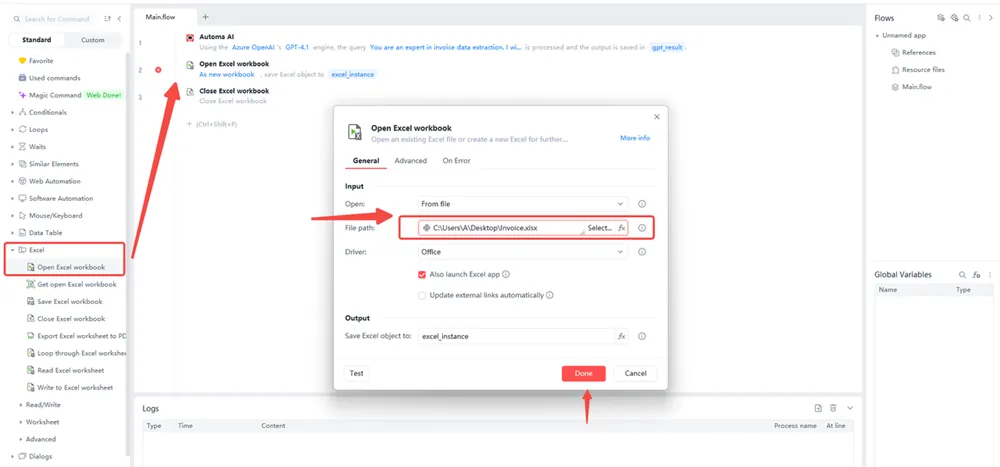
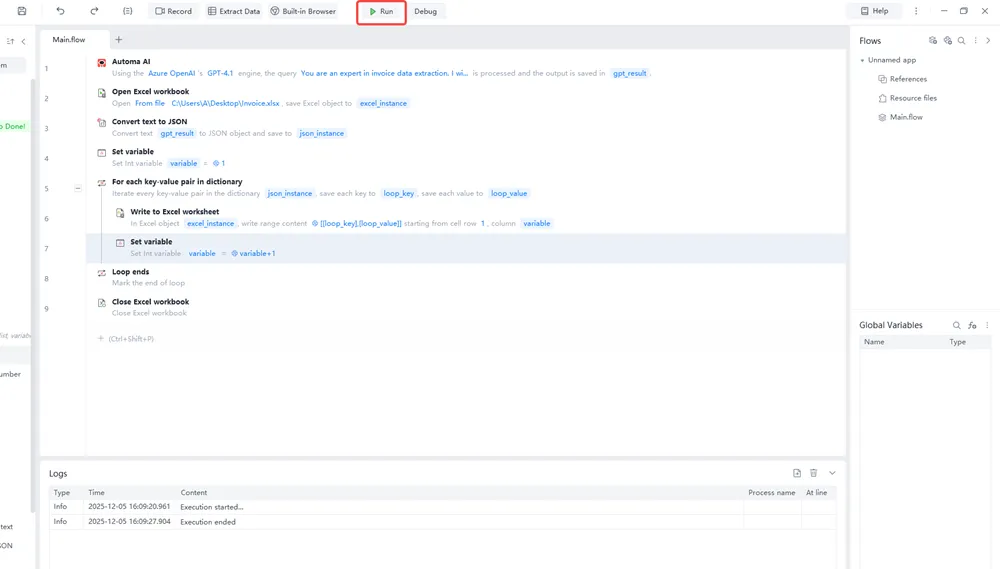
Step 7: Write the data to the Excel file you need. In the left-hand command bar, find "Open Excel workbook" under "Excel", drag it into the editor, then upload the Excel file containing the invoice data in the "File path" field of the pop-up window, and finally click "Done".
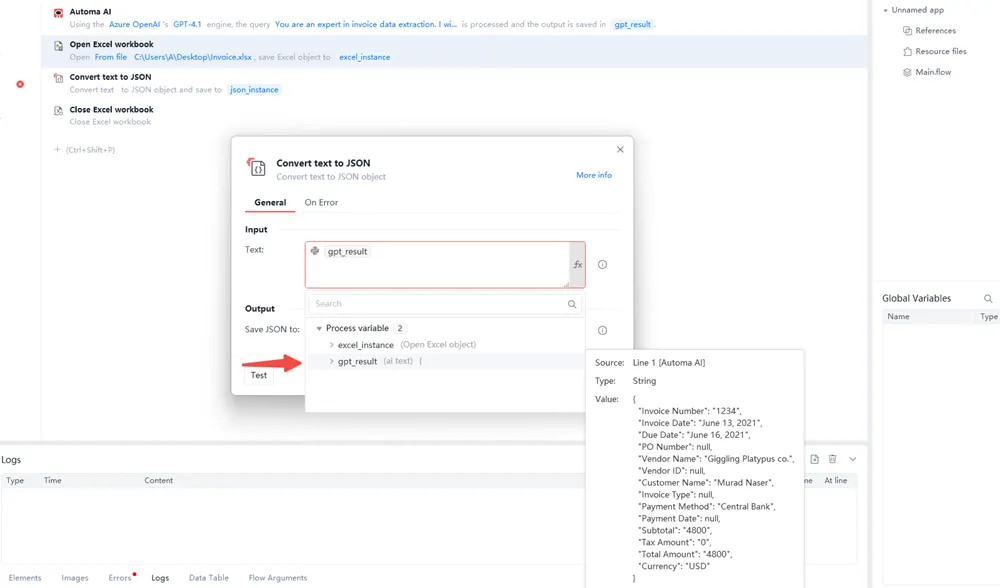
Step 8: Following the steps above, your Automa has completed the task of extracting data from the invoice and opened the Excel file where you want to write the data. Next, we'll perform some simple data processing to convert the AI results into JSON. Since the AI returns a String, we need to convert it to JSON to facilitate looping through the JSON. In the left-hand command bar, find "Data Processing," select "JSON," and drag the "Convert text to JSON" command into the editor.
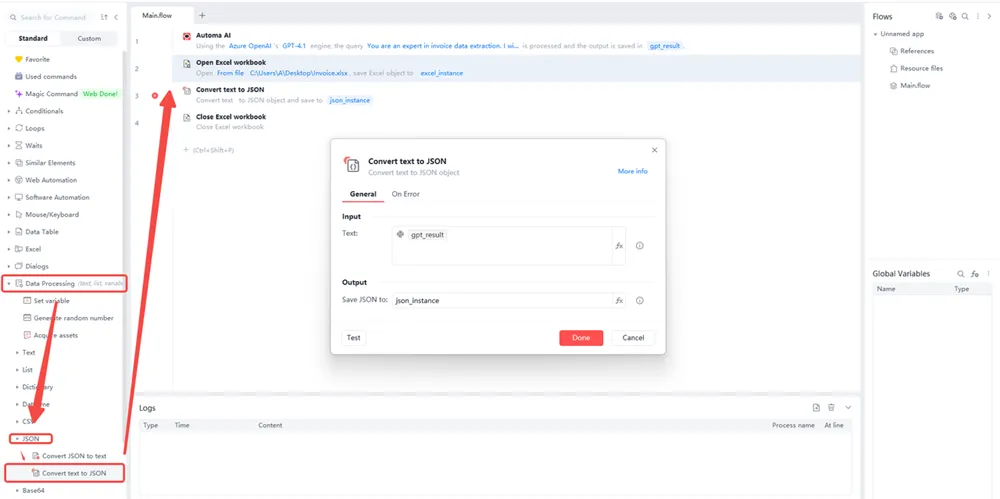
Step 9: In the pop-up window, click "fx" in the "Text" section, find "gpt_result", select it, and finally click "Done".
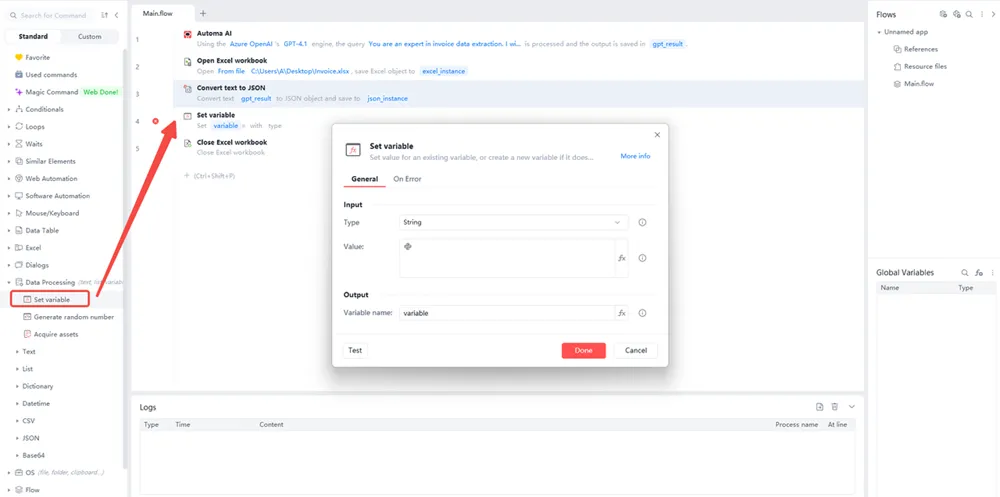
Step 10: Next, we need to set a variable. Add "Set variable" to the editor. This variable is to set an initial serial number so that it can be correctly entered into the configured Excel column.
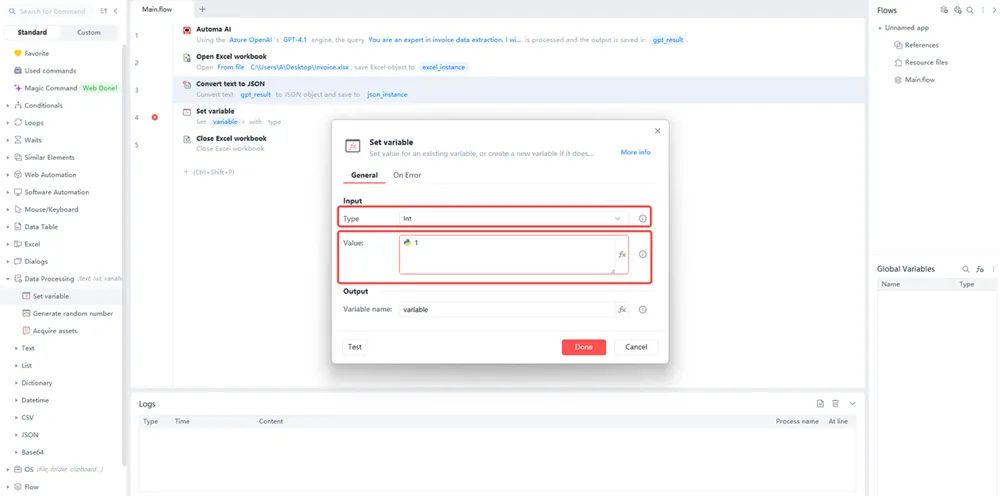
Step 11: In the "Type" field, select the data type "Int". Then, in the "Value" field, enter "1". Finally, click "Done".
Step 12: In the "Loops" section, find "For each key-value pair in dictionary" and add it to the editor.
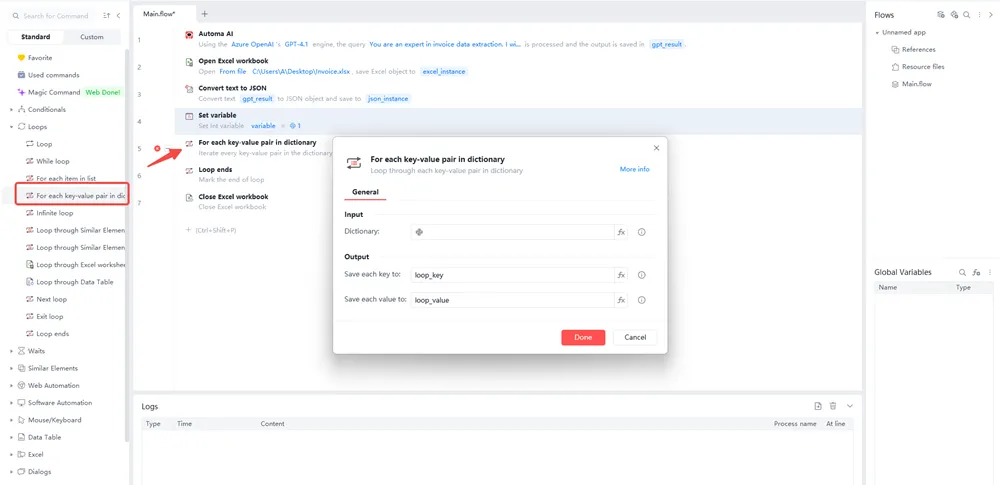
Step 13: Loop through the AI-extracted invoice data that we saved in "json_instance" in "Step 6".
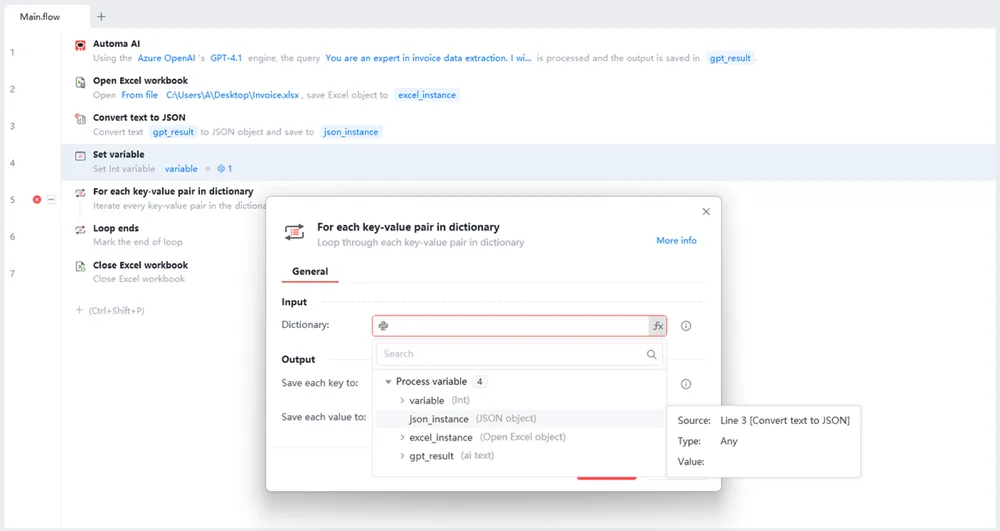
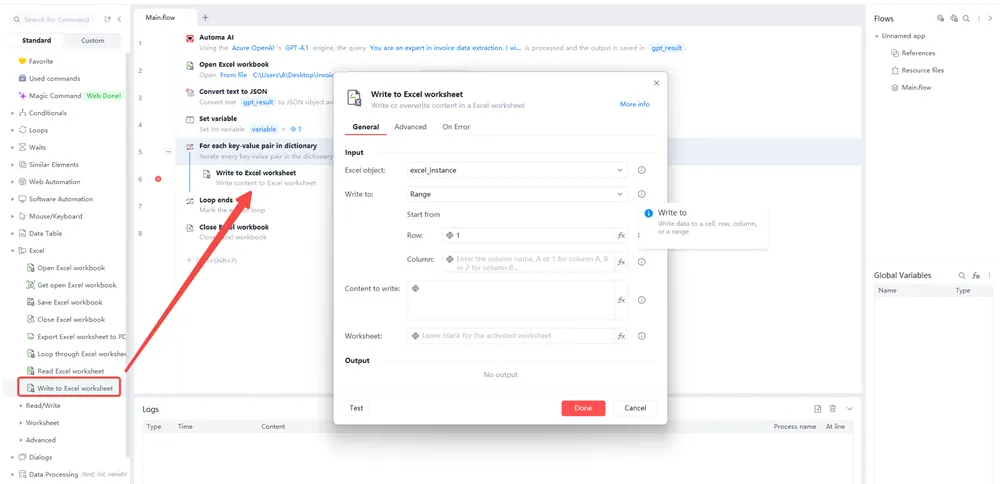
Step 14: Add the "Write to Excel worksheet" command to write the looped content into the Excel file we added earlier.
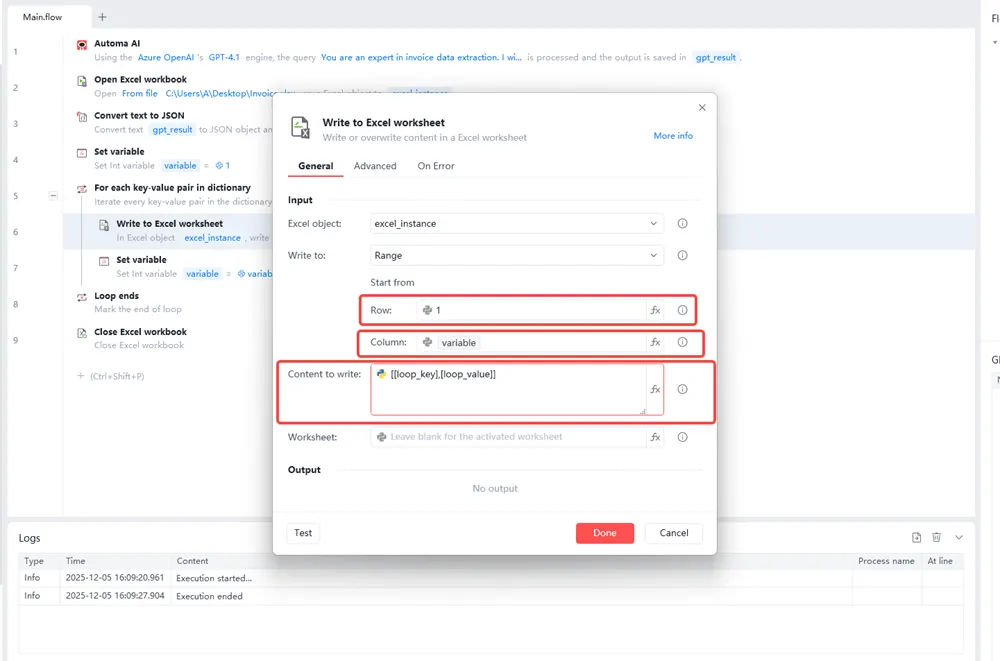
Step 15: The default value for "Row" is "1", and the "variable" column is the one you've set up. In "Content to write", enable the Python icon, and fill in the data for the invoice field stored in loop_key and the invoice field stored in loop_value according to the format shown in the image. Finally, click "Done".
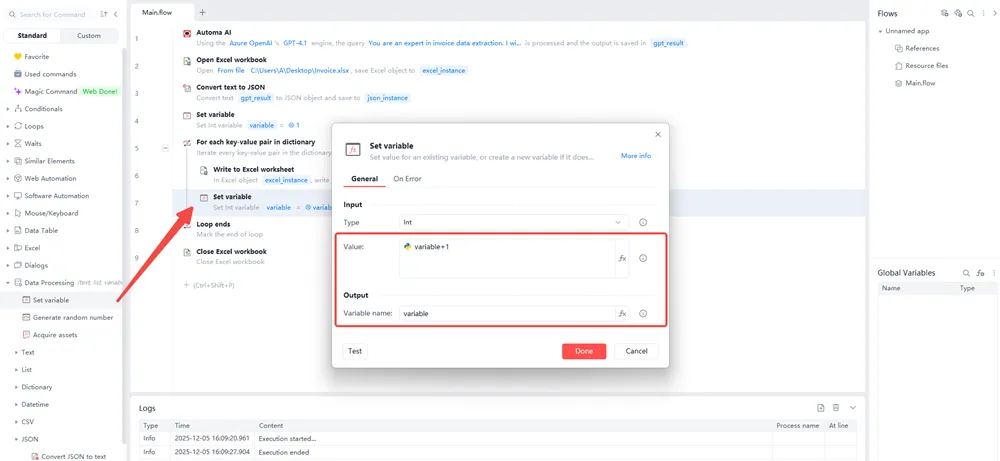
Step 16: Let's set another variable to increment the Column number by 1, so that the next loop can continue writing. Note that the variable name here must be consistent with the variable name you used before.
Step 17: Click the "Run" button. Your invoice data extraction is now complete.
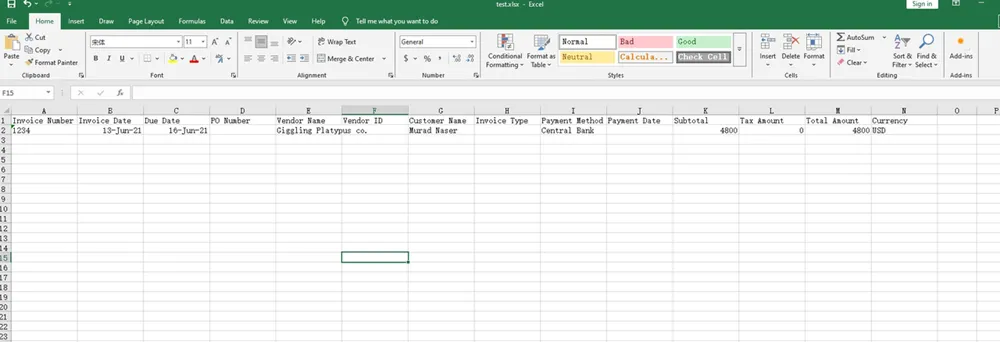
You can open the Excel file containing the invoice data on your computer desktop.
Way 2 Extract Data From Invoices with OCR
Step 1: Collect Invoice Files
Collect all invoice documents from different places, like PDF files, scanned images, email attachments, or downloaded invoices from platforms. Sort them into folders. You can sort them into folders by vendor, month or project. This will make things more consistent.
Step 2: Pre-Process Images
Make the images of invoices better to get better results from OCR. This includes making tilted scans level, getting rid of background noise, sharpening text, and changing the brightness and contrast.
Step 3: Import Files Into the OCR System
Then upload or automatically send the prepared invoice files to the OCR platform. You can do this by using drag-and-drop, folder monitoring, email integration, or Automa RPA bots.
Step 4: Detect Layout and Identify Key Regions
The OCR engine can identify different parts of a document, such as the header, supplier details, dates, line items, totals and tax fields.
Step 5: Extract Key Invoice Fields
Once the layout is identified, the OCR engine extracts all the relevant information from the invoice. This includes the supplier's name, address, tax ID, invoice number, dates, line-item descriptions, quantities, prices, tax amounts, subtotals, and the final total.
Step 6: Validate and Normalize the Data
The data that has been extracted is then checked to make sure it is complete, accurate, and consistent. This includes checking date formats, making sure the symbols for currencies are all the same, checking that totals are correct, and finding any fields that are missing or not matched.
Step 7: Export Structured Data
Once this has been done, the invoice data is sent out in a standardised way. This can be in a format like Excel, CSV, JSON, or it can be sent straight into a database. It can also be sent via API to ERP or accounting systems.
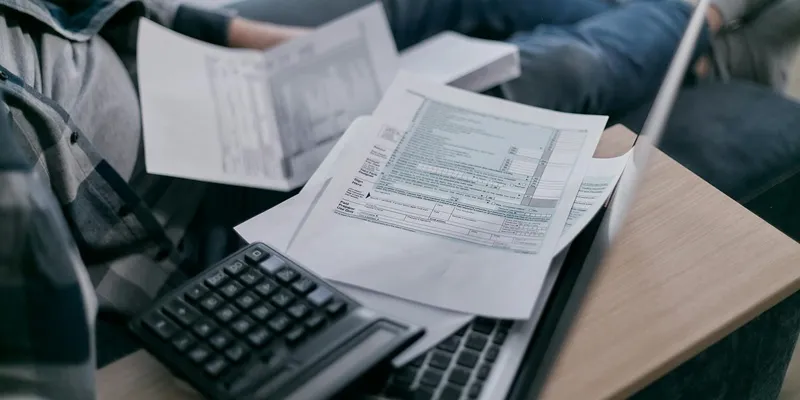
Manual vs Automated Data Extraction
It's really important to get data from messy sources into a form that software can understand if you want to use automation. For years, the normal way of doing this was to open a PDF or spreadsheet, read the important information, and then copy it into a computer system. It works, but it's slow, fragile, and very expensive if you make a lot of them. Every new document type, every formatting issue and every language variation needs a new round of human effort.
Manual extraction has another problem: there just isn’t enough human time in the world to keep up with modern data volumes. If your pipeline depends on people labeling every invoice, contract, or sensor log line-by-line, you quickly hit a hard limit on how much you can process. And just like hand-labeled datasets for AI, high-quality human extraction is a scarce resource.
Automated data extraction tries to get around these limits. Instead of relying on someone to tell it exactly where each field is, an automated system is trained—often on a mix of labelled and unlabelled examples—to spot patterns in documents or streams of data. If you give it enough information, it can learn where totals usually appear on invoices, how line items are structured, or how dates are formatted. It doesn't need to be told this for every single template. Over time, these systems get better at recognising structure in what at first appears to be random noise.
As tools improve, automated extraction is no longer just about reading text. Modern systems can also process images, tables, and even audio. That means you can point one system at a scanned contract, a photographed receipt, and a machine log file and still expect it to pull out the key fields. It doesn’t just “know” what an order number is in theory. It has seen enough orders to recognize where they are likely to appear and how they tend to look.
But you can't just flip a switch and trust automation with important data. You can't always predict what an automated extractor will do in a new situation. The best pipelines combine both of these methods. They use automated extraction to handle most of the work and then apply targeted checks, rules, and human review to make sure the results are correct. This hybrid approach keeps the speed and scale of automation while making the system's behaviour easier to predict, audit, and align with what organisations actually need.

Why Automated Invoice Data Extraction Matters in 2026
Setting up an automated system to collect invoice data can seem difficult at first, but in the long run, it will be worth the time and effort. The good news is that the initial effort can be reduced a lot with the right automation stack and AI-powered extraction tools.
Here's an Dooder example: a U.S. company that makes precise products used automation to cut the time it takes to process invoices by 85% — from about 40 hours to just 6 hours. They got better at entering data, from around 88% to 99.8%, and they got faster at paying, from 7–10 days to just 2–3 days.
Here are some of the reasons you'll see when you make automated invoice data extraction a priority in 2026:
Cost-efficient scalability
Using automated extraction means you can process invoices more cheaply than using manual entry. Each invoice that goes through the system delivers a higher return on investment than traditional AP workflows, where human error and rework are common. Also, you only pay for what the system successfully processes. So, your main cost is in the platform and configuration, not in having more employees.
Strengthens data accuracy and compliance
In 2026, organisations will be under more and more pressure to keep their financial records clean and easy to audit. Automated extraction helps make sure all invoice fields are standard, it makes sure the data is always checked, and it makes everything easy to trace. Whether invoices arrive via email, EDI, or supplier portals, a single extraction layer ensures consistent, reliable data that supports compliance and reduces audit-related problems.
Empowers finance teams to focus on strategy
If invoice data automatically goes into your ERP or accounting system, your finance team can stop doing data entry and dealing with exceptions. Employees who used to spend hours on manual tasks can now focus on other things, like making payment terms better, improving relationships with suppliers, and analysing spending. Often, they become long-term supporters of automation in the business, encouraging ongoing improvements in processes related to invoice processing and other areas.
Which industries benefit from AI-driven invoice automation?
AI-driven invoice automation delivers measurable value across multiple industries by addressing their distinct financial workflows while unlocking substantial efficiency gains.
Finance and Banking
Financial institutions use technology to automatically process invoices, manage expenses and make sure everything is in order. The technology automatically extracts and checks key information, such as vendor details, invoice numbers, line items, tax amounts, and payment terms. It then matches this information against purchase orders and contracts. This can reduce processing time by up to 80–90%, stop duplicate or incorrect payments, improve internal controls, and make compliance stronger. The resulting organised data easily connects to BI, ERP, and treasury systems, making it easier to see how money is moving in and out of a business and to manage the money that a business has available to spend.
Manufacturing and Supply Chain
Manufacturers and supply chain operators deal with lots of supplier invoices linked to complicated purchase orders, deliveries to lots of different sites, and changes in material costs. AI-driven invoice automation can handle thousands of documents, even if they have different formats. It can find and correct pricing, quantities, and shipping details. This makes it easier to match orders and invoices, and helps to spot problems like overbilling or missed discounts. By turning invoice data into something that can be analysed, companies can better understand how well their suppliers are performing and how they can improve their purchasing.
Retail and E‑Commerce
Retailers and online shopping platforms use invoice automation to deal with lots of transactions and many different vendors. AI extracts SKU-level information, such as discounts, promotions and tax information, from invoices and matches them with purchase orders and inventory systems. This helps to make better decisions about how much stock to keep in the warehouse, and makes it easier to pay the supplier. It also helps to improve the relationship between the supplier and the company. Automated exception handling helps to reduce things that stop the system from working, so that finance teams can focus on pricing strategies, how well different categories are doing, and how profitable they are instead of having to enter data manually.
Healthcare and Life Sciences
Hospitals, clinics and life sciences organisations can benefit from AI-driven automation to manage invoices from pharmaceutical suppliers, device manufacturers and service providers. The technology makes data the same across different formats, checks that charges are correct according to contracts and formularies, and makes sure that approvals are followed. This reduces wasted time and money, and also helps to make sure that the rules are being followed. If your invoices are in order, it will be easier to work out how much things cost and see how profitable different services and departments are.
Professional Services and Technology
Consulting firms, IT service providers, and software companies use invoice automation to manage customer billing and vendor payments. AI systems can read invoices and other documents to find out how much something costs and what the terms of the contract are. This makes billing more accurate, reduces loss of revenue, and speeds up collection of cash, while automating the approval process for payables. Having all your data in one place makes it easier to predict how much money you will make and keep track of how profitable your projects are. This means that your leaders can make decisions more quickly by using the information.
In all these areas, using AI to automatically process invoices makes the process much quicker, more accurate, and better for financial control.
Conclusion
Using software to automatically get invoice data means you don't have to enter the same information into your system over and over again. It also means fewer mistakes and faster processing of your accounts. But the best setup depends on how many invoices you have, how complicated they are, and the tools you use. If you only deal with a few standard invoices, the simple features that are already part of your accounting software or the basic OCR tools might be all you need. If you want to combine your invoice inbox with Automa, you can unlock end-to-end workflows, line-item level extraction, smart validation rules, and real-time analytics.
FAQs
Why you should use Automa for extracting data from invoice?
Automa is a great tool for getting invoice data because it uses both high-accuracy OCR (optical character recognition) and strong RPA automation. It can handle complicated invoice designs, extract the right information, and so there is no need to check things manually. Beyond OCR, Automa automates the whole workflow—saving files, updating spreadsheets, syncing with ERP systems, and matching invoices with purchase orders. It can process large amounts of data at any time, and you don't need any coding skills to use it. Automa is a reliable and cost-effective way for finance teams to improve invoice processing and operational efficiency. It offers local deployment options and strong data security.
How accurate is AI-based extraction?
AI-based extraction is 92.4% accurate, compared to manual entry or simple OCR. Modern platforms use machine learning and context awareness to recognise fields like totals, taxes, and line items even when the layout changes. Over time, the system can learn from corrections to get better and better at making accurate predictions. While no solution is 100% perfect, AI can reduce errors, misreads and missing data, especially when used on a large scale.
Can I automate invoices from any format?
Yes. Automa can handle lots of different formats, like PDFs, scanned images (JPG, PNG), email attachments, and even photos taken on a mobile phone. They work with digital and scanned invoices, in any structure, and you can set up one automated workflow for all your incoming documents.
How do I extract data from a PDF invoice?
If you want to create simple, structured PDFs, you can use tools like Excel's Get Data feature. However, for mixed layouts, scanned PDFs, or large volumes, AI-powered platforms are much better. They can detect important parts of the data, like key fields, line items and totals. They can also check the data and send it to programs like Excel, your ERP or accounting software.
Is automated invoice extraction secure?
Yes. The best AI invoice extraction platforms use strict security measures, like data encryption when it's being sent and stored, and controlling who can access it. Many of them follow important rules like GDPR, HIPAA, and ISO. They also offer ways to make data anonymous and to control how long it is kept.
Can I automate invoice data extraction?
Yes. You can automatically get all the information from invoices as soon as you receive them. AI platforms can monitor your emails, upload folders, or cloud storage, automatically capture invoices, extract and validate key fields, and then send the results to the system you prefer.
Can I process invoices in bulk automatically?
Yes. Most invoice solutions that use AI have a feature that processes lots of invoices at once. You can upload or send large sets of invoices all at once, either once a day, once a week, or continuously. The system processes them all at the same time, gets the data out, and puts everything into standard formats like Excel, CSV, or JSON, or straight into your ERP or bookkeeping system.
Do I need technical knowledge to use AI invoice processing?
No, modern invoice automation tools are designed for business users, not just IT specialists. They offer easy-to-use dashboards, templates for common invoice fields, and visual tools to design workflows without needing to write code.
What does "invoice extracted" mean?
"Invoice extracted" means that the platform has successfully read the invoice file, captured the relevant data (such as supplier, dates, amounts, taxes, and line items), and organised them in a usable format. At this point, the information is ready to be checked, approved, and sent to your financial systems. This makes a static invoice document into digital data that can be used.