
These days, if you're not talking fast and personal, you're not in the game. Customers want it now, they want it for them, and they don't want the story to change from one channel to the next. That's why everyone and their cousins are setting up email automations to keep the wheels from falling off.
It doesn't matter what you're running—an online store, a software platform, or a service business. Getting your emails on autopilot means you can fire off replies in an instant, wrestle your chaos into some kind of order, and handle more work without having to find space for a new hire. Setting up these automated sequences has shifted from a "nice-to-have" to the only way to keep your head above water as you grow.
Now, AI Email tools like Automa and Make are in the ring, both promising to get this automated system running your way. So, which one should you bet on? The real answer isn't on a feature list. It's in how they behave when you start building something complicated. This guide will put Automa and Make side-by-side where it counts, and help you figure out which tool is the right fix for your particular situation.
What is email automation?
Before comparing Automa and Make, it's important to understand email automation. This term refers to using software to automatically send, sequence, or trigger emails based on predefined rules, user behaviors, or workflow logic. When people ask about email automation, they are typically asking about systems that handle repetitive tasks like sending confirmations, replying to common inquiries, or following up with leads.
Instead of manually sending each message, businesses can set up rules—for instance, "send a welcome email when a user signs up" or "alert the billing department when a subscription payment fails." With capable email automation programs, users can create multi-step sequences, integrate with CRM systems, connect to databases, and synchronize email communications with internal workflows.

Importance of email automation
Email automation isn't about replacing humans, it's about amplifying them. A small indie bookstore started firing off personalized welcome emails that felt like they were written by their friendliest bookseller. It scales the human touch, not eliminates it. They help businesses scale, improve accuracy, and create high-value experiences for both users and teams.
Productivity Sidekick
Remember that soul-crushing feeling of answering the same question for the tenth time? A local bakery's customer service person was spending hours explaining their gluten-free options until they set up a auto-reply with their allergy guide. Now, they're baking more and typing less. Email automation workflows eliminate manual repetition. Instead of spending hours sorting inboxes or drafting repetitive replies, teams can rely on automated systems to handle routine communication.
Faster Customer Response
We live in an "I-want-it-now" world. Customers expect fast answers. A boutique hotel realized people were emailing "Did my booking go through?" at 2 AM. An instant confirmation complete with local insider tips. 25% fewer panicked guest emails and more relaxed travelers from day one. With email automation programs, businesses can deliver instant confirmations, provide support routing, or send helpful information automatically. This creates a better user experience and reduces friction.

Personalization
People know when they're being mass-emailed. But when a vintage clothing shop started sending "Thought you might like this" emails showing items similar to what customers had browsed, something funny happened. Their click rates jumped 20% because it felt like their coolest friend was texting them style suggestions, not some corporation blasting promotions. Automation tools allow companies to send tailored messages based on user behavior. From onboarding sequences to abandoned cart emails, personalization becomes easier and more effective.
Sales Engine
While everyone's sleeping, automated emails are out there earning their keep. An online pottery class platform noticed people kept forgetting to renew. They started sending gently "Don't lose access to your wheel!" reminders with a student discount, and bam - 15% more people stayed enrolled. By nurturing engaging customers at the right moment, automated emails contribute directly to higher conversions and improved customer lifetime value.
Builds Trust
Humans have bad days. Computers don't. Automations ensure every customer receives the correct message, at the right time, with consistent quality. A credit union kept having tiny but embarrassing mistakes in their manual billing emails. After switching to automated systems in finance, those "oops" moments disappeared. Now every member gets the same clear, correct information every time - building that "they've got their stuff together" confidence that keeps customers loyal.
Platform overview
Automa
Automa is a platform that allows you to build visual workflows without having to write any code. It has evolved beyond traditional robotic process automation (RPA) to become an intelligent automation (IA) platform that uses artificial intelligence. It makes human-machine interaction much more efficient, turning robots into digital employees that can think and make decisions.
It has a drag-and-drop builder that lets users automate operations in their workflows by simply clicking. The platform uses clever features like AI-driven natural language commands and OCR/captcha processing, which make it much more adaptable and better at extracting data. Automa users can quickly find and use ready-made solutions in its Template Marketplace. This makes it a useful and efficient AI tool for people and teams doing tasks like data scraping, form filling, and process management.

Make
Make (formerly Integromat) is a no-code integration and automation platform that connects apps and services. Enter Make.com, which is basically digital duct tape for your entire software stack. Forget boring to-do lists of automations. This thing lets you draw your workflows like a crazy mind map on a sprawling 2D canvas.
The whole thing runs on what they call "Scenarios." Think of it as building a custom machine for a specific job. Each little circle you drop on that canvas is a "Module"—a single, specific action in another app, like adding a row to a Google Sheet or sending a Slack message. It allows users to design workflows visually by linking triggers, actions, and data transformations across different apps.
It plays nice with over 2,000 other tools, from Google Workspace, Slack, Salesforce to your social media accounts.The platform is designed for both beginners and advanced users who need sophisticated automation capabilities.

Automa vs Make: Pros and Cons
Automa Pros
Extensive App Integration: Connects to a library of over 1,000 supported apps, ensuring broad compatibility and allowing users to automate most well-known software tools without worrying about connectivity issues.
Pre-Built Templates: Offers a collection of ready-to-use templates for common tasks (such as managing leads or scheduling social media posts), saving time and enabling automation setup with minimal effort.
Built-In Automation Tools: Includes integrated features like the Formatter (for cleaning up text, dates, or numbers), Filter (to continue automation only under specific conditions), and Paths (for creating decision branches in workflows), making automations smarter and more adaptive.
Extremely Low Barrier to Entry (No-Code): Utilizes a visual, drag-and-drop interface that requires no coding, empowering business users to design workflows quickly and deploy automations in minutes without developer assistance.
AI-Powered Intelligent Automation: Goes beyond basic automation by integrating AI for smart decision-making and adaptive learning, enabling handling of complex tasks and delivering a higher level of intelligent process automation.
Robust Cross-Platform Scalability: Works seamlessly across different systems and devices, and is designed to scale from individual users and small businesses to large enterprises, with a proven track record of processing over 100 million automation workflows.
Strong Security and Data Privacy: Emphasizes data ownership and privacy, complies with enterprise-grade security standards, and uses strong encryption, making it suitable for data-sensitive industries such as finance and healthcare.
Proven Efficiency Gains: Reduces process handling time by up to 87% by automating repetitive tasks like data entry and invoice processing, quickly eliminating inefficiencies and freeing up human resources for more strategic work.
Handles Complex Tasks Well: Demonstrates admirable flexibility in managing multi-condition scenarios, branching paths, and data transformations, with the ability to host and clearly represent sophisticated decision trees, making it effective for addressing non-standard business requirements.
Automa Cons
You must use this computer only for this purpose: Automa automates tasks by imitating mouse and keyboard actions. You can't use the computer and the robot at the same time. Because the robot will interfere with your mouse operations. This will cause process errors.
Hardware Dependency: RPA processes need to be kept running by the computer, which uses up local CPU and memory resources. If you want to run more than one robot at the same time, you need to buy extra computers or cloud desktops.
Problems with the operating system: Automa mostly works on Windows computers. While it works with Mac, its main desktop and system automation features work best on Windows.
Interface changes can cause problems: Automa carries out actions by finding the parts of the screen (e.g. button positions and input field attributes). If a webpage updates, buttons change location or colour, or desktop software displays an update prompt, the process may immediately stop.
It cannot run in the background: You can make it smaller or run it in a virtual machine, but you still need a desktop environment to do anything. It can't achieve the same background operation as cloud services, which is completely transparent and silent.

Make Pros
Wide App Compatibility and Data Handling: Its successful integration of hundreds of common applications is impressive. It demonstrates high efficiency in parsing, restructuring, and transferring data across apps, which forms its core value proposition.
Clear Visual Workflow Builder: The flowchart-style visual editor is a standout feature. It's not just visually appealing; it genuinely makes complex business logic intuitive and data flow transparent, significantly boosting confidence and efficiency in building and debugging workflows.
Handles Complex Tasks Well: The platform demonstrates admirable flexibility when dealing with multi-condition scenarios, branching paths, and data transformations. Its ability to host and clearly represent sophisticated decision trees is critical for addressing non-standard business requirements.
Good Value for High Usage: Based on comparison, I find its pricing model genuinely attractive for businesses with substantial automation needs (e.g., over ten thousand monthly operations), offering a more competitive cost-effectiveness ratio compared to mainstream alternatives.
No Setup Needed: As a pure cloud service, it works out-of-the-box, completely eliminating the hassle of maintaining on-premise infrastructure. This zero-deployment model drastically lowers the technical barrier and time investment required to start.
Helpful Support Team: The responsiveness and expertise of its support team contribute positively to the user experience. The ability to receive timely and effective assistance when facing issues provides crucial peace of mind for businesses relying on automated workflows.
Make Cons
Doesn't Connect to Everything: Make works with a lot of apps, but not as many as Automa. You might find that some of the more specialized tools you use aren't available here.
The Price Can Climb: It's fine for simple tasks, but if you start building really complex workflows, you can quickly find yourself needing a much more expensive plan.
Not for Beginners: Figuring out how to build anything beyond the basics can be tricky. It's not something you'll master in an afternoon.
The Interface Can Be Confusing: Some parts of the system feel cluttered and aren't as easy to use as they could be, which doesn't help when you're already trying to learn.
Struggles with Websites: If your work involves automating actions on a website (like scraping data or logging in), Make isn't the right tool.
Inflexible for Programmers: If you like to write your own code to get things done just right, you'll probably find Make too limiting.
Support Isn't the Best: When users have problems, many feel that the help they get from Make's support team is slow and not always effective.
How does Automa work for email automation?
The most stable and efficient method is to use the Protocol Mode (SMTP/IMAP) rather than simulating mouse clicks on the webpage. However, due to Google's high security, you usually cannot use your standard login password. You must first obtain an "App Password".
Here are the specific steps:
Step 1: Get a Gmail "App Password"
Before using Automa, you need to configure your Google Account to allow third-party connections.
Log in to your Google Account and go to the Google Account Management Page.
Click on "Security" in the left-hand menu.
Ensure that "2-Step Verification" is turned ON. (If not, you must enable it first).
With 2-Step Verification enabled, search for or locate the "App passwords" option.
Note: Sometimes Google hides this at the very bottom of the "2-Step Verification" detail page.
Create a new password:
Select App: Choose "Other (Custom name)" and type "Automa".
Click Generate.
Copy the generated 16-character password (it looks like xxxx xxxx xxxx xxxx). This is the password you must paste into Automa.
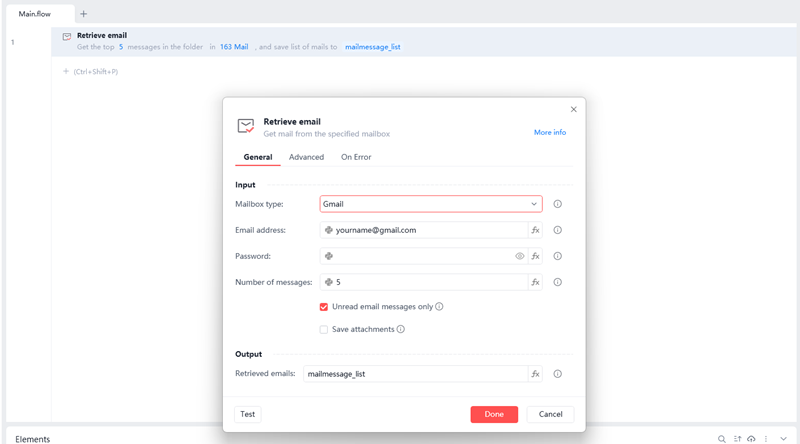
Step 2: Configure Gmail in Automa
Return to the Automa editor and follow these steps:
Drag in the [Configure Mailbox] command
Search for "Mailbox" or "Email" in the command library, and drag the [Configure Mailbox] command into the flow.
Email Address: Enter your Gmail address (e.g., yourname@gmail.com).
Password/Auth Code: Paste the 16-digit App Password you just generated (Do NOT use your Google login password).
SMTP Server (Outgoing): smtp.gmail.com
SMTP Port: 465 (Check SSL) or 587 (Check TLS). 465 + SSL is recommended.
IMAP Server (Incoming): imap.gmail.com
IMAP Port: 993 (Check SSL).
2. Drag in the [Send Email] command (Test)
To: Enter one of your other email addresses for testing.
Subject: "Automa Gmail Test".
Content: "Hello, this is an automated email."
Run Application: If configured correctly, your test email should arrive in a few seconds.
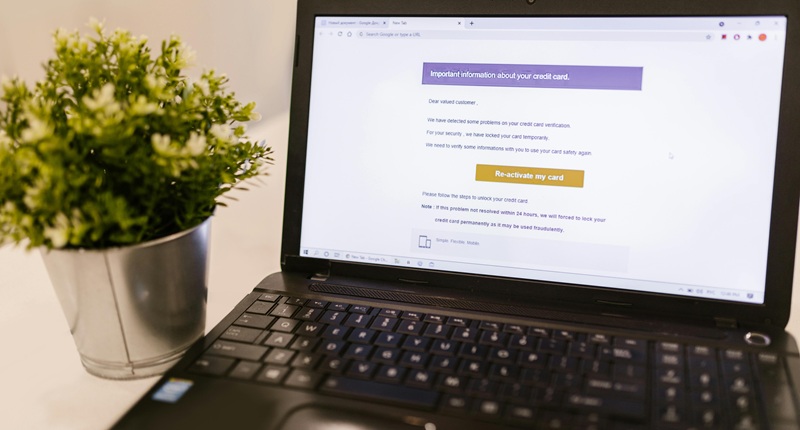
Step 3: Real-World Scenario — Batch Sending with Attachments
Suppose you have an Excel file containing client emails and file paths for attachments.
The Logic Flow:
[Configure Mailbox]: Enter your Gmail account and App Password.
[Open/Create Excel Object]: Open your client list Excel file.
[Read Excel Content]: Read all data into a variable named sheet_data.
[Loop List]: Loop through sheet_data. Let's call the current item item.
(Inside the Loop)
[Send Email]:
To: Select the variable item['Email'].
Subject: Use string concatenation, e.g., "Monthly Report - " + item['Name'].
Attachment: Select the variable item['AttachmentPath'] (Ensure the path is real, e.g., D:\Reports\01.pdf).
[Wait]: (Optional but Recommended) Drag in a [Wait] command and set it to 2-5 seconds. This prevents Google from flagging you as spam for sending too quickly.
How does Make work for email automation?
Make is highly effective for data-driven email automations, especially when connecting multiple systems:
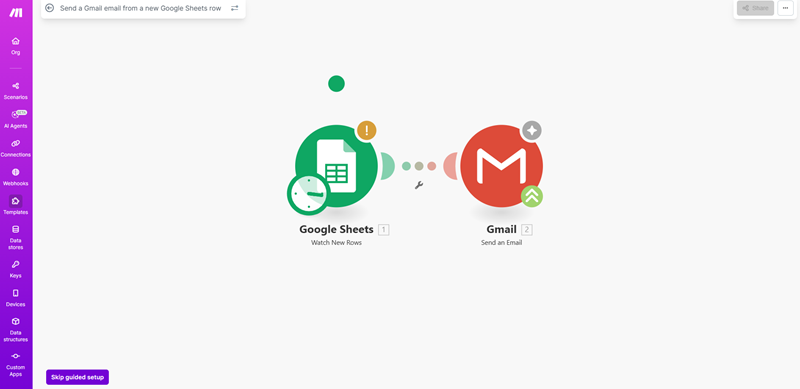
App connectors. Easily connect Gmail, Outlook, Mailgun, SendGrid, HubSpot, CRM tools, and ticketing systems.
Email parsing. Make can analyze email content, extract fields, and route information to other apps, such as Slack or databases.
Triggered messaging. Set up automations to send emails when a form is submitted, a spreadsheet is updated, or a webhook fires.
Workflow visualization. Users can build email automation workflows by combining triggers, filters, routers, and iterative logic.
Cloud execution. Unlike Automa, everything runs server-side, making it reliable and maintenance-free.
Pricing
In 2026, Automa and Make have very different pricing models, with Automa charging based on subscription plans and Make using a usage-based "operations" system.
The table below provides a clear comparison of their 2025 pricing structures to help you evaluate which model fits your needs and budget.
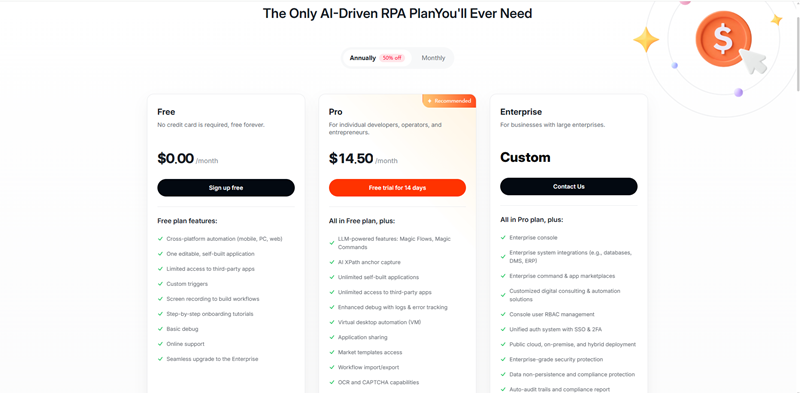
Automa 2026 Pricing and Features
Automa adopts a subscription-based pricing model, primarily targeting users who require powerful desktop and browser automation capabilities.
Free Plan
Price: $0/month, no credit card required.
Core Features:
Cross-platform automation
1 editable application flow
Limited third-party app access
Custom triggers
Screen recording functionality
Tutorials and basic support
Pro Plan
Price: $29/month, or $14.50/month when billed annually.
Core Features:
Includes all Free Plan features
AI-powered Magic Flows and Commands
Unlimited application flows
Unlimited third-party app access
Enhanced debugging capabilities
Virtual desktop automation
Application flow sharing
Marketplace templates
Workflow import/export
OCR and CAPTCHA handling capabilities
14-day free trial available
Enterprise Plan
Price: Custom pricing based on company needs.
Core Features:
Includes all Pro Plan features
Enterprise console
System integrations with databases and business tools
Command marketplace
Custom solutions
Advanced security features (SSO, two-factor authentication)
On-premise deployment options
Compliance features
Custom API integration
Full AI integration
Intelligent dashboards
Dedicated technical support
Load balancing for high-volume automation
14-day free trial available
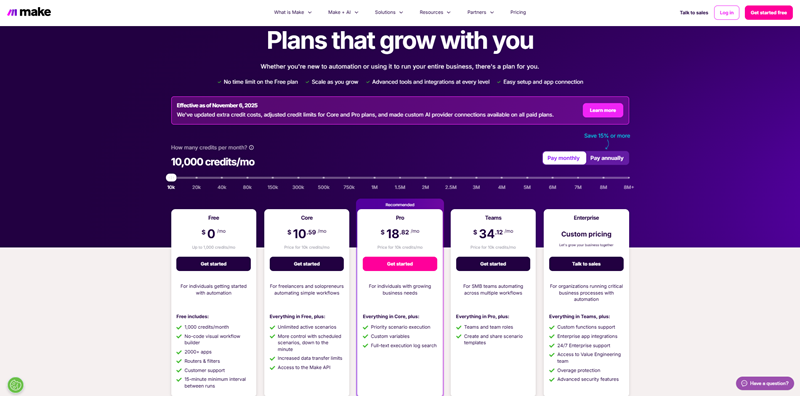
Make 2026 Pricing and Features
Make uses a flexible pricing model based on the number of "operations," suitable for automating workflows that connect multiple cloud applications and handle complex data processing.
Free Plan
Price: $0/month
Operations: 1,000 operations per month.
Description: An "operation" is each individual step in a workflow (e.g., adding a row to a spreadsheet or sending an email). This plan is ideal for testing the platform and running simple automations.
Paid Plans
All paid plans include access to the visual builder and app integrations.
Core: $9/month, includes 10,000 operations.
Pro: $16/month, includes 10,000 operations, plus priority execution and advanced features.
Teams: $29/month, includes 10,000 operations, and provides team collaboration tools and shared templates.
Enterprise: Custom pricing, includes unlimited operations, dedicated support, and advanced security features.
Note: If you exceed your monthly operation limit, you can purchase additional operations for $1 per 1,000 operations.
Automa vs Make: comparison table
Feature | Automa | Make |
|---|---|---|
Browser Automation | Yes | No |
Cloud Execution | Limited | Yes |
App Integrations | Moderate | Extensive |
Email Parsing | Strong (via browser/API) | Strong (via connectors) |
Ease of Use | Medium | Easy |
Cost Efficiency | High | Medium |
Best For | RPA, scraping, customized workflows | App integrations, API-based email workflows |
Automa vs Make: Which to Choose?
When to choose Automa
Choose Automa if you need:
Browser-level automation for Gmail
RPA-style actions like clicking, reading, scraping
Complex, customized email automation workflows
A flexible, cost-effective solution
Automation of repetitive web or email tasks not supported by typical integrations
Automa is ideal when your emails depend on data pulled from websites or when your workflow requires human-like interactions online.
When to choose Make
Choose Make if you need:
Clean integrations between cloud apps
A visual builder that is beginner-friendly
Multi-step sequences requiring API communication
Fast deployment without maintaining local environments
Automated messaging based on data changes across tools
Make is the best choice for teams working across SaaS tools (CRM, helpdesk, marketing, spreadsheets) where structured data is essential.
Conclusion
Choosing between Automa and Make comes down to your automation style and workflow requirements. If your email automations rely on scraping, or highly customized logic, Automa offers unmatched power and flexibility. If you prefer seamless cloud integrations and a visual interface that connects multiple apps, Make may be the better choice. By understanding your goals, you can choose the right tool to build reliable, scalable, and intelligent email automations that support long-term growth.
Ready to supercharge your automation? Get a free 14-day trial of our Pro Plan when you register! It's the perfect way to accelerate your no-code journey and unleash the full potential of Automa AI automation. Visit the official Automa website to see what you can achieve
FAQs
What are the 3 possible outcomes of an email automation workflow?
In most cases, a workflow ends up doing one of three things:
Sending an automated email—the straightforward, fire-and-forget path.
Routing the email or extracted data into another system, tool, or database.
Triggering follow-up actions such as CRM updates, tagging, task creation, or internal alerts—basically the ripple effects that keep workflows moving.
What other types of task can I automate with Automa?
Quite a lot. Automa can handle web scraping, form submissions, lead harvesting, CRM syncing, data entry loops, repetitive browser interactions, reporting flows, and a wide range of multi-step RPA-style processes. Anything that lives in a browser and follows a pattern is fair game.
Do I need coding skills to use Automa?
Not for the basics. You can build simple flows visually without touching a script. But once you start layering conditions, transformations, or multi-branch flows, a bit of logic or scripting knowledge goes a long way.