
Imagine your team woke up to a set of routine messages – like daily reports, welcome replies and scheduled follow-ups – already in their inboxes. This would free people to focus on decisions rather than delivery. If you have ever wanted to know how to automate sending emails in Outlook, you've come to the right place. This 2026 guide shows you how to set up automatic emails in Outlook. It explains when to use each method, shows its limitations, and compares the features of Outlook with those of other tools so you can choose the right balance of control and scale.
What are automatic emails in Outlook?
Automatic emails in Outlook are message actions that happen without you manually clicking Send or Move—think auto-replies, scheduled sends, rule-driven routing, and template-triggered responses. Compared to purely manual workflows, Outlook’s automations are vastly more capable because they use triggers, conditions, and chained actions to work through complex communication patterns end to end. In terms of reliability and flexibility, Outlook’s built-in Rules and Automatic Replies are roughly on par with what you get in Gmail and other major clients, and features like Delay Delivery and Quick Steps often edge ahead in day-to-day business use.
How to automate an email in Outlook? (8 Ways)
Automatic replies (out-of-office)
If you’re going to be away from your inbox, you can set Automatic Replies (Out of Office) so anyone who emails you gets a polite, pre-written response. This is a quick, low-maintenance way to automate communication for incoming mail while you’re unavailable.
On Outlook for Windows
Open Outlook.
Click Setting in the top-right.
Click Account.
Select Automatic replies.
Toggle ‘Automatic replies’ to ‘on’
Optional: Check Only send during this time range, then set your Start and End times.
Click Save.
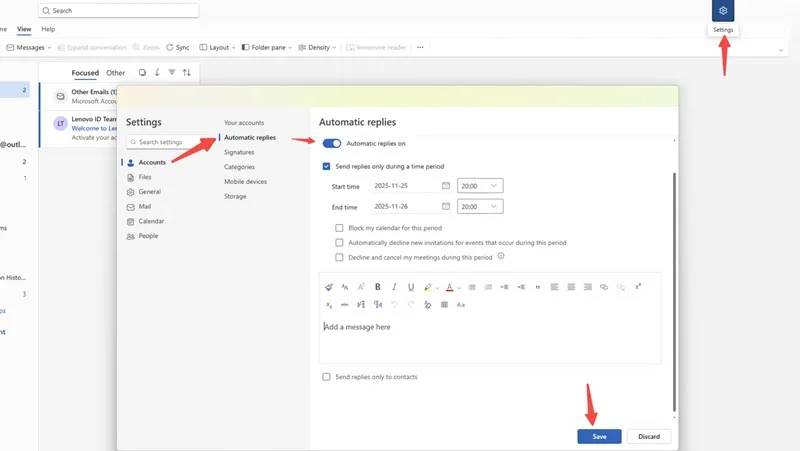
Notes:
It’s reactive and generic. Automatic Replies respond to incoming emails. They don’t route, categorize, or escalate messages beyond basic rules.
External visibility. Auto-replies to external senders can disclose that you’re away.
One reply per sender (usually). Exchange throttles auto-replies to avoid loops.
Time zones and scheduling. The time range uses your mailbox/server time zone.
Schedule emails to send later
If you want your email to go out at a specific time—say, after business hours or when your recipient’s morning starts—you can schedule it. This tells Outlook to hold the message and send it automatically at the time you choose.
Open Outlook
Click Home
Click New mail

Write your message.
Under Send options, choose “Schedule send”
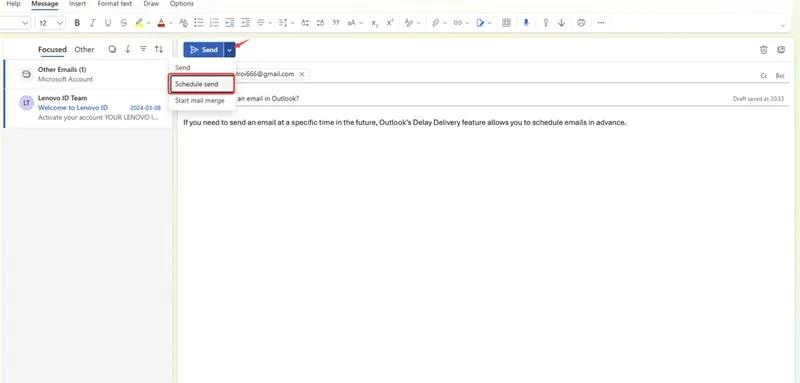
Click Schedule Send
Choose the time. You can also custom time.
Click Send. Outlook will keep the message in your Outbox and send it at the scheduled time.
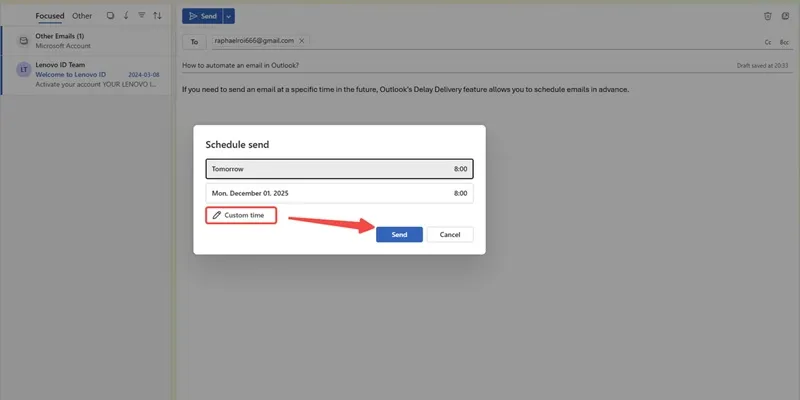
Notes:
Outlook has to be running and connected at the scheduled time. If the app is closed or your laptop is asleep, the email waits until Outlook is back online.
It’s per-message and can get tedious. Scheduling one email is quick, but if you’re lining up dozens each day, setting times one by one can wear you down—speaking from experience.
You can schedule only after you compose the email. This isn’t a proactive, recurring-send solution.
Editing the message in the Outbox can unset or alter the delivery time. If you open and resave the email, double-check the Delay Delivery settings.
Outlook templates & canned responses
If you frequently send the same kinds of messages, you can save time and keep consistency by using templates (canned responses). In the new Outlook, “My Templates” lets you insert pre-written text into emails with a click—ideal for standardized replies, common instructions, or recurring outreach.
On new Outlook for Windows
Open Outlook.
Start a new email or reply.

In the compose toolbar, click Templates (My Templates). If you don’t see it, click Apps/Add-ins and enable “My Templates” by Microsoft.
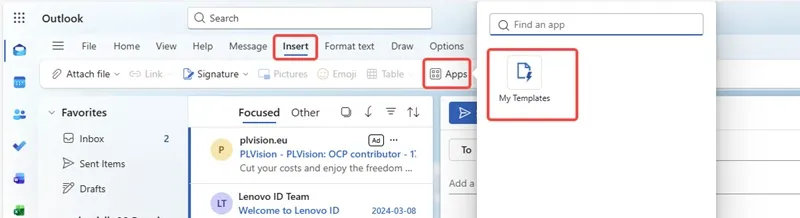
Click template.
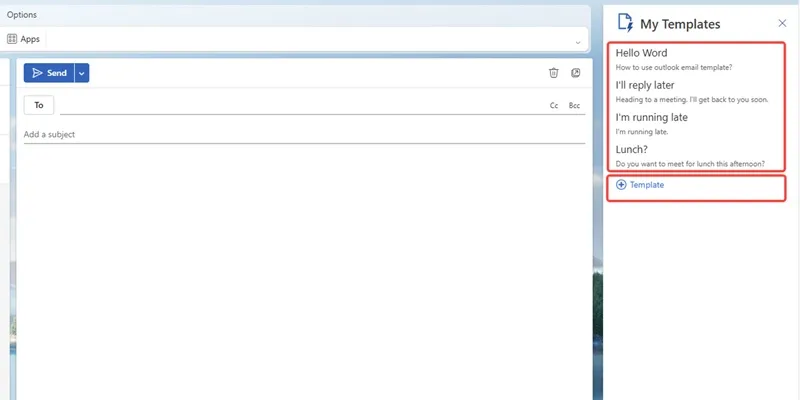
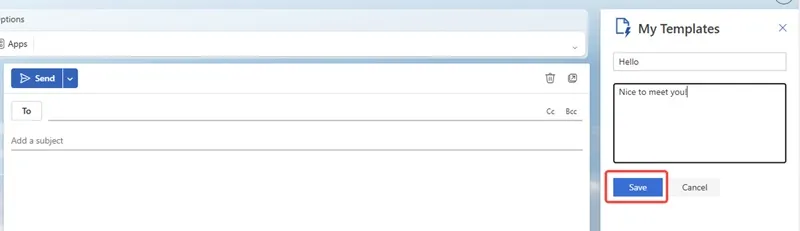
Name your template.
Enter your canned response text. Optional: include placeholders like [Recipient], [Case #], or [Next steps] to personalize later.
Click Save.
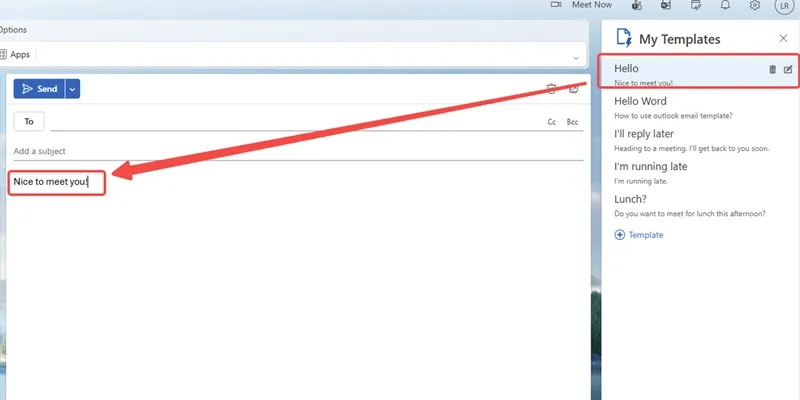
To use it, open the Templates pane and click the template to insert it into your message body.
Notes:
It’s proactive and reusable. Templates speed up outbound writing. They don’t route, categorize, or escalate messages.
Roaming scope. “My Templates” are stored with your mailbox and roam across new Outlook and Outlook on the web. They don’t sync to classic Outlook for Windows or mobile.
Formatting limits. Templates insert text only—no images, attachments, or complex layouts.
No dynamic fields. There are no variables or mail-merge fields in templates. Use placeholders and personalize manually, or use mail merge/Power Automate for bulk personalization.
Per-user, not shared. Templates aren’t centrally shared or exported.
Alternatives. In classic Outlook, use Quick Parts/AutoText or .oft message templates (not available in new Outlook).
Automating recurring emails
If you send the same update regularly, you can set up a lightweight system in Outlook to help you send it on schedule. This doesn’t truly auto-send, but it speeds things up and reduces the chance you’ll forget. The first thing to do is create a template for the content you regularly send. (Refer to previous content)
Then you need to set up regular sending reminders.
Open Outlook.
Go to Calendar
Click anywhere on the calendar. A pop-up window will appear allowing you to add a title and select a date.
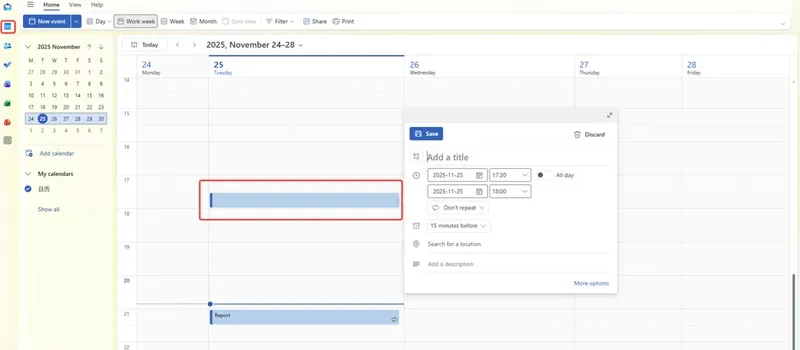
Add your reminder to the title and choose the frequency you want it to repeat. You can also choose how far in advance you want to be reminded.
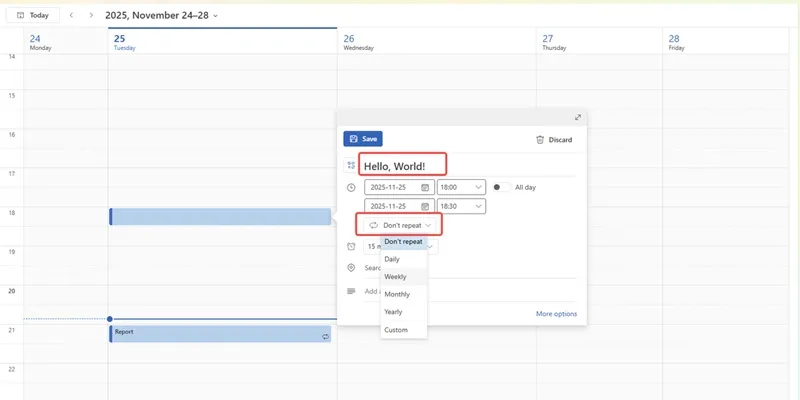
Click Save
Outlook will now remind you to send the email at the set time.
Finally, you simply need to manually send the email template you prepared beforehand.
Notes:
It’s not truly automated. You still have to be at your computer to open the template and press Send. If you’re away or Outlook is closed, nothing goes out.
Maintenance overhead. Recipient lists, dates, and attachments need periodic updates.
Time-zone shifts and holidays. Recurring reminders can drift across time zones or clash with holidays, requiring manual adjustment.
Compliance and consistency. Because it’s manual, human error can creep in (wrong week number, missed send, etc.).
Rule-based auto responses
If you’re constantly answering the same types of emails, you can set rules to auto-respond with a template. This saves time and ensures consistent replies when specific criteria are met.
On New Outlook for Windows
Open Outlook.
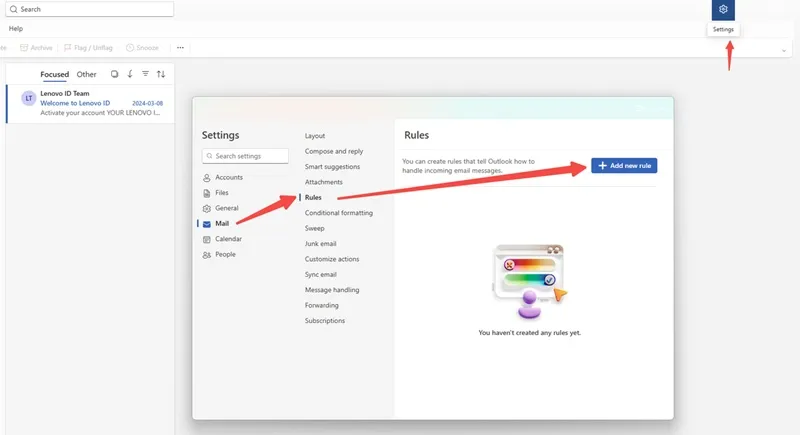
Click the Settings gear in the top-right.
Click View all Outlook settings.
Go to Mail > Rules.
Click Add new rule.
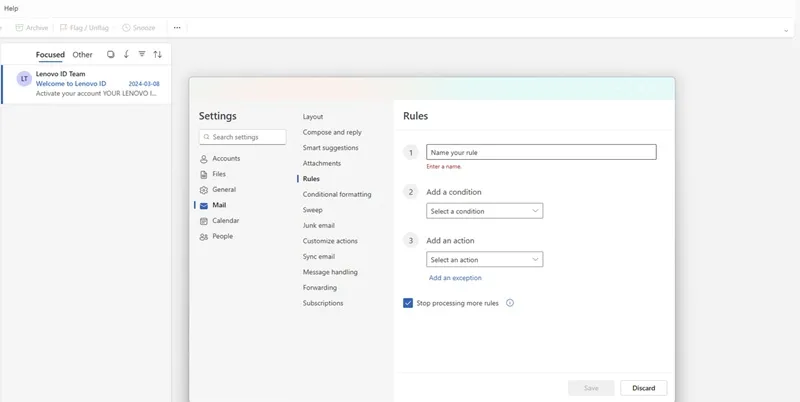
Name your rule (for example, “Automate replies”).
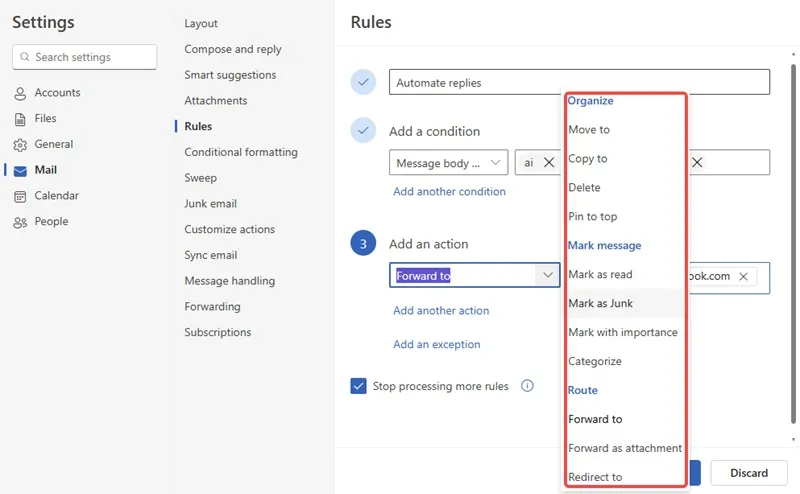
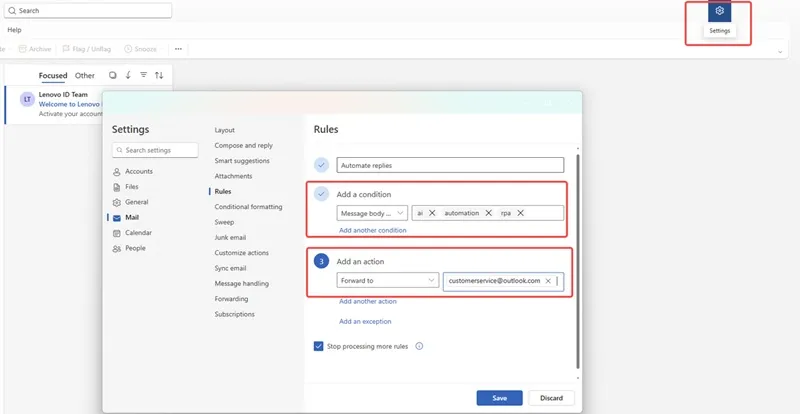
Under Add a condition, choose what should trigger the reply (for example, Message body includes “ai”, “automation" or "rpa" ).
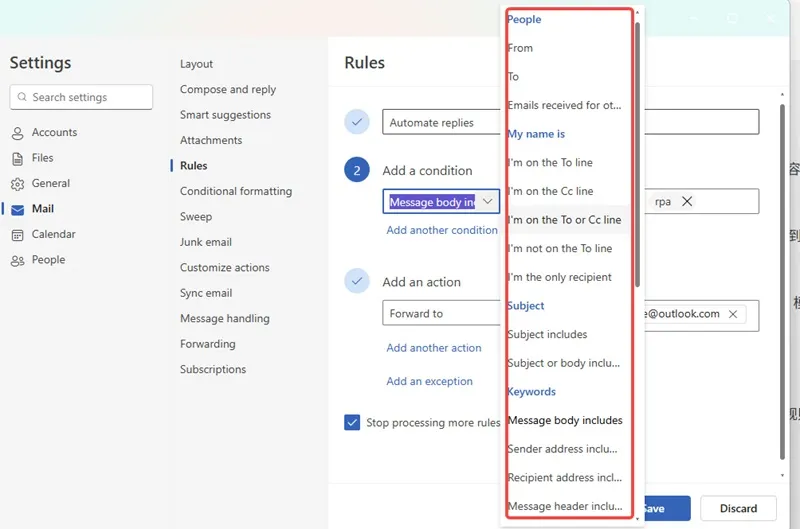
Under Add an action, choose "Forward to". After completing the rule settings, Outlook will automatically forward it to my colleagues.
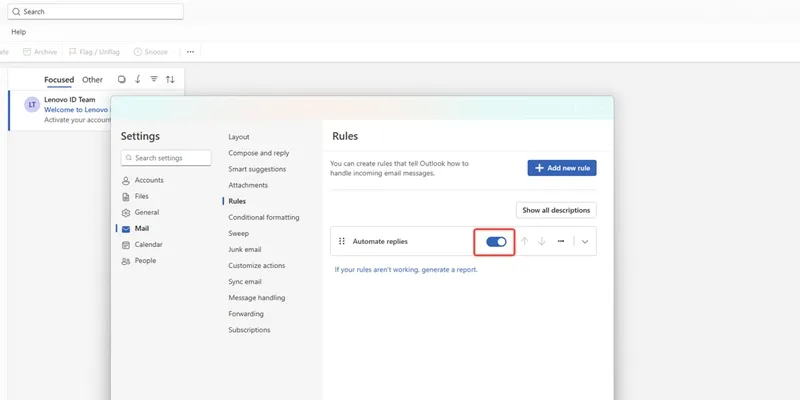
Toggle the rule On, then click Save.
Note:
Conditional and proactive. Unlike out-of-office, rule-based replies fire only when conditions match (sender, subject, recipient, etc.). They won’t automatically cover all incoming mail.
Server-side in New Outlook. Rules created here run in the cloud and will execute even when the app is closed.
No built-in scheduling. Rules don’t have start/end times. If you need time-bounded behavior, manually toggle the rule or use Automatic Replies (Out of Office) with a time range.
Interaction with other automation. If both an out-of-office and a rule-based reply could trigger, users may receive multiple notices. Prefer one mechanism at a time and use Stop processing more rules to control order.
Use Outlook add-ins
Outlook add-ins extend the new Outlook with apps that automate tasks, integrate external services, and add contextual actions right inside your inbox. They’re a fast, low-maintenance way to streamline workflows without leaving Outlook.
Open the new Outlook.
Open any message (or start a new one).
Click Insert, then click Apps, get Add-ins on the toolbar.
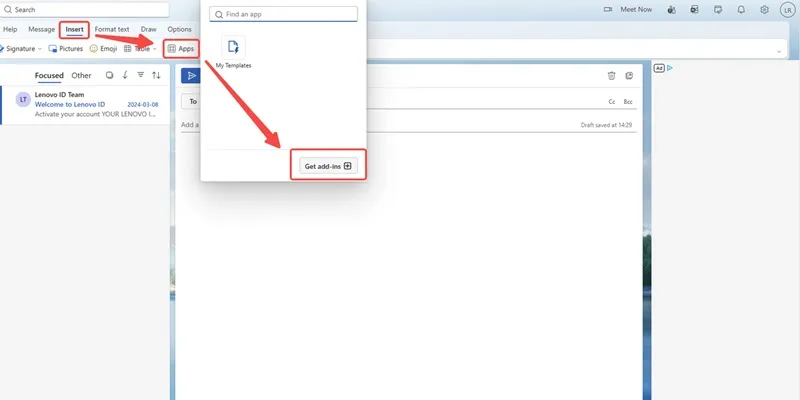
Click Get add-ins, browse or search for an add-in, then click Add.
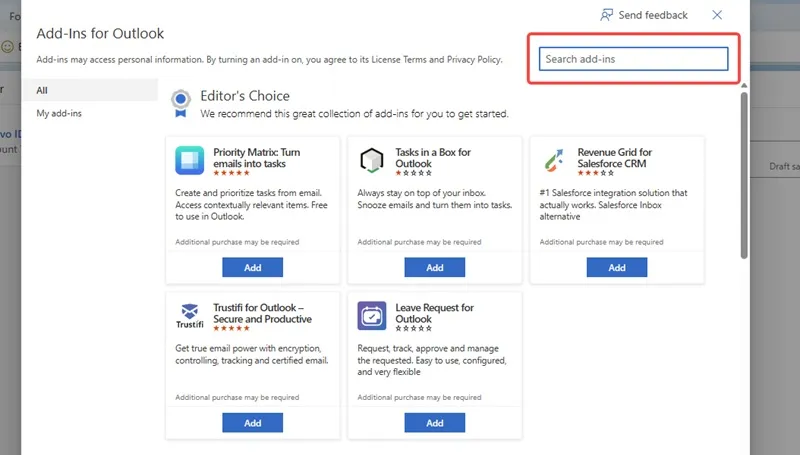
Notes:
Mailbox requirements. Add-ins require an Exchange Online or Outlook.com mailbox. POP/IMAP-only accounts (and some third‑party accounts) don’t support add-ins.
Permissions and consent. Each add-in requests specific permissions. Some add-ins require you to sign in or have a separate license.
Cross-client availability. Add-ins typically work in new Outlook, Outlook on the web, and Outlook for Mac. Behavior can vary slightly by client.
Connectivity. Add-ins run in a secure web context and require internet access.
Use Power Automate
Power Automate lets you build email-driven workflows so routine tasks happen automatically. You can triage, file, notify, and integrate with other apps (Teams, OneDrive, SharePoint, Planner, etc.) without staying glued to your inbox.
Open Outlook.
Click Automate in the top toolbar. If you don’t see it, open the app launcher (the waffle) and select Power Automate, or choose More apps > Power Automate.
Sign in to Power Automate if prompted.
Browse Outlook templates (for example: Save email attachments to OneDrive, Post to Teams when an email arrives, Move messages from a sender to a folder) or choose Create from blank.
Select a trigger such as When a new email arrives (V3) or When a new email arrives in a shared mailbox (V2).
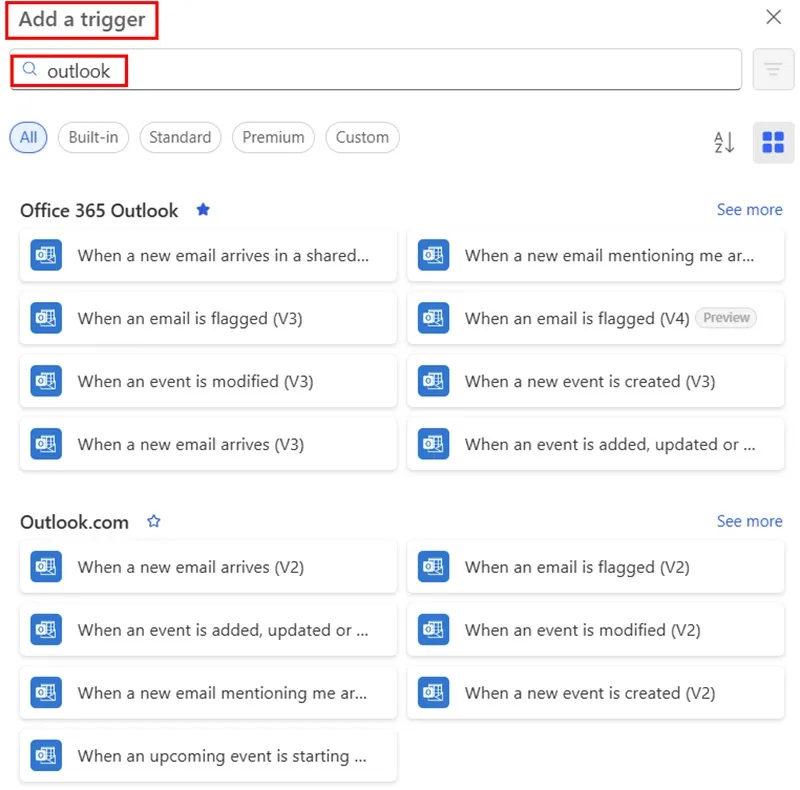
Configure trigger filters: mailbox/folder, From/To, Subject contains, Has attachments, Importance, Include/Exclude meeting invites.
Add actions: Move or categorize email, Send an email (V2), Save file to OneDrive/SharePoint, Post a message in Teams, Create a Planner task, Update a SharePoint list, etc. Use conditions to branch logic and add error handling.
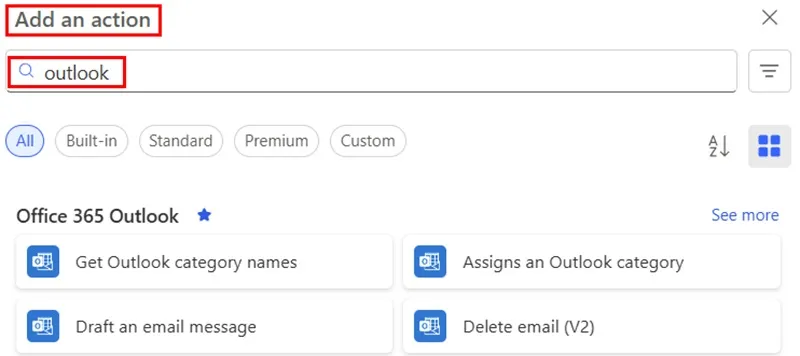
Name the flow, click Save, and Turn on.
Notes:
Reactive and event-based. Flows fire when emails arrive. They don’t replace full mailbox rules or human triage. Combine with Outlook Rules for simple routing and reserve flows for cross-app automation.
Licensing and connectors. Some actions require premium connectors (e.g., Salesforce, ServiceNow, HTTP).
Throttling and limits. Outlook/Graph APIs and connectors enforce rate limits.
Time zones and scheduling. Flow times are UTC by default. Convert times explicitly if you compare or schedule using local business hours.
External data movement. Flows can copy email content to external systems.
Reliability and maintenance. Connections can expire and cause failures. Monitor run history, configure failure notifications, and add retries. Store state if you need to avoid duplicate actions (e.g., one reply per sender).
Environment and ownership. Create flows in the correct environment (production vs. personal). Use solutions and set co-owners for critical automations to avoid orphaned flows.
Third-party automation tools
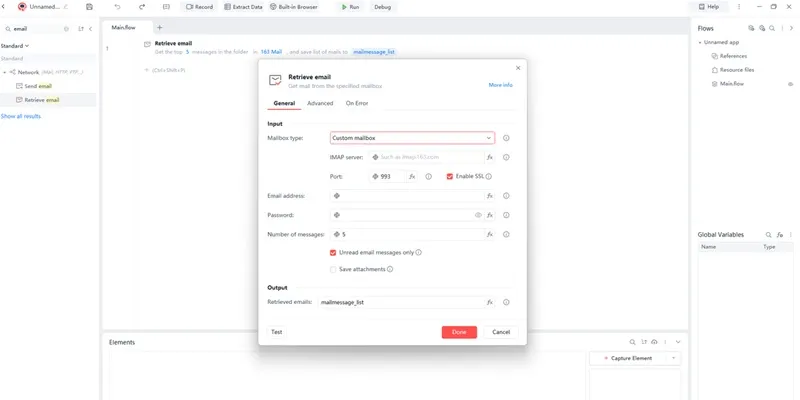
Third-party automation tools like Automa can be used to automate email workflows in the new Outlook by creating visual flows. For example, you can pass information between Outlook on the web and apps like Google Sheets, Slack, or Microsoft Teams by combining Automa blocks such as HTTP Request, Webhook, and CSV/Spreadsheet. You just need to define a trigger—on a schedule, on page changes, or via a webhook—and an action to categorize, forward, archive, or log emails to automate routines end to end.
Automa-powered Outlook automation is ideal for personal productivity; if you want a more collaborative approach, pairing it with an Outlook shared inbox helps teams manage triage and handoffs while maintaining automation.
With Automa, you can leverage ready-made sequences or build your own to quickly automate common Outlook tasks, saving time and effort without heavy overhead.
Why automate emails in Outlook?
I used to manage every follow-up, confirmation, and status update in Outlook by hand. It worked—until volume spiked. Then I started missing checkpoints, pasting the wrong template, and scrambling to find the last thread. Not a great look when a prospect is waiting or a project deadline is looming.
So I automated. After experimenting with Outlook Rules, Quick Steps, and a couple of Power Automate flows, I leaned into email automation for a few reasons:
Save time
Triage and filing happen automatically based on sender, keywords, or time windows. Routine responses go out with the right template, and common actions (forward to the right owner, add a category, set a follow-up) are one click instead of five. That adds up fast when you’re processing dozens of messages a day.

Improve productivity
Automation reduces context switching. Priority messages are surfaced, SLAs are enforced with reminders, and low-value noise is batched for later. The result is more uninterrupted deep work and fewer “Where did that email go?” moments.
Reduce errors
Standardized templates with dynamic fields eliminate copy/paste mistakes. Guardrails catch problems—think “warn me if I mention ‘attached’ with no attachment,” blocklist checks for sensitive recipients, and approval steps before anything high-stakes goes out. Consistency becomes the default.
Personalize communication
“Automated” doesn’t have to mean generic. Flows can insert names, account details, and next steps from your CRM, branch messaging for different segments, and schedule sends to land at the right local time. The recipient still feels like you wrote it just for them.
When to Use Automatic Emails in Outlook?
Automatic emails in Outlook come in handy for anything that needs to go out reliably—whether it’s me sending updates to clients or internal reminders to my team. Here are the main use cases in my day-to-day work.
Marketing emails
For small, highly targeted campaigns, I keep everything inside Outlook. I build a simple email in Word, use Mail Merge to personalize first names and company names from a CSV, and send via my mailbox so it looks and feels 1:1. I add an unsubscribe line and segment tightly to protect deliverability. If I’m emailing more than a few dozen contacts, I throttle with Delay Delivery and stagger send times to avoid hitting provider limits.
Reminders & notifications
When I need routine nudges—upcoming deadlines, invoice reminders, or “meeting tomorrow” notes—I rely on templates and scheduled send. I keep templates for each reminder type, fill in the variable fields, and use Delay Delivery to land in the recipient’s inbox at the right time.
Follow-ups
If I don’t hear back, I let Outlook do the memory work. I flag outbound messages for follow-up and use an add-in (e.g., Boomerang or FollowUpThen) to automatically send a polite bump if there’s no reply after X days. For simple threads, I keep Quick Parts—the short snippets I reuse often—and a Quick Step that drops in the right follow-up language, applies a category, and queues a scheduled send. It keeps my pipeline moving without me retyping the same note a hundred times.

Newsletters & updates
For monthly client updates or internal newsletters, I maintain a clean template with our branding, sections for wins, upcoming milestones, and a short CTA. I personalize the intro line via Mail Merge and send to small lists using BCC or distribution groups to protect privacy. I schedule the drop for mid-morning in the recipient’s time zone and keep images light to avoid spam filters. It’s not a replacement for a full newsletter platform, but for compact audiences, it’s quick, consistent, and easy to maintain.
Reports & periodic summaries
Weekly status summaries and KPI snapshots are automated end to end. I have a Flow that compiles data from Excel/SharePoint, renders a short digest (top changes, exceptions, next actions), and emails stakeholders at a set cadence. For attachments (like the latest financial report), I drop the file into OneDrive. The Flow picks it up, names it properly, and sends it in a templated message. If a data source fails, I get a separate alert so I can fix it before anyone notices.
Customer support responses
In our shared support mailbox, rules route messages by subject or sender to the right folder (billing, onboarding, technical). Each queue has a templated auto-acknowledgement with the ticket number, SLA, and escalation path—carefully scoped to avoid loops with other auto-replies.
Multi-step outreach (via external tools)
When I need a true sequence—email, LinkedIn touch, call, and a final check-in—I orchestrate the steps in Automa, but send the actual emails via Outlook using an add-in so they come from my address and sit in my Sent folder. The tool handles timing and step tracking. Outlook handles deliverability and keeps the thread natural.
Limitations of Outlook email automation
Outlook is great for everyday correspondence. But when I need actual automation, it quickly hits a ceiling. Here are the main limitations I run into in day-to-day work.
No sequencing or multi-step automation
If I want a simple drip: intro today, reminder in three days, follow-up next week, Outlook can’t do that natively. Rules are reactive and single-step. They trigger on receipt or send and stop there. There’s no per-recipient state, no “wait X days then send Y unless they replied,” no branching based on engagement. The best I can do inside Outlook is flag or categorize messages and then babysit them with calendar reminders. I can wire up Power Automate for delays and conditions, but it’s fragile, hard to audit, and breaks under edge cases (forwarded threads, moved items, shared mailboxes). Net result: more manual work than automation.
Not ideal for campaign-scale communication
Outlook simply isn’t built for campaigns. Throttling and recipient caps kick in fast, spam heuristics get twitchy, and there’s no out-of-the-box list hygiene, bounce handling, or unsubscribe management. Personalization is limited to mail merge tricks, which are clunky and error-prone. And because tracking is minimal, I can’t see deliverability issues early or roll back mid-stream.

Not Allowed to A/B Test
Outlook has no concept of experiments. If I want to test two subject lines or two CTAs, I’d have to manually split a list, send two versions, and guess at performance with read receipts or link parameters—neither of which is reliable or comprehensive. There’s no randomization, no significance testing, and no aggregated reporting. I end up making decisions on gut feel instead of data, which isn’t how I like to run campaigns.
Unintuitive and time-consuming
Even the basics are fiddly. The Rules Wizard buries conditions and exceptions, desktop and web clients behave differently, and shared mailbox rules require duplicate setups and constant maintenance. Quick Steps help with repetitive actions but don’t scale to real workflows. I spend more time wiring and unwiring rules than actually communicating.
Automa vs. Native Outlook
At first glance, both Automa and Native Outlook can help you tame repetitive email-related tasks. Automa is an AI automation tool designed to orchestrate complex, cross-service workflows, while Outlook’s native features (Rules, Quick Steps, and optional VBA) focus on automating actions inside your mailbox. Dig deeper, and the differences in logic depth, integrations, monitoring, and extensibility become clear.
Here’s a quick breakdown of how they compare, but keep reading to learn more about how I use each in real-world automation.
Features | Automa | Native Outlook |
|---|---|---|
Multi-Step Automation | ⭐️⭐️⭐️⭐️⭐️ Builds multi-step, branched flows with loops and variables | ⭐️⭐️⭐️ Rules/Quick Steps chain simple actions. Multi-step complexity requires VBA |
Advanced Conditional Logic | ⭐️⭐️⭐️⭐️⭐️ Robust conditions, regex, data transforms, and stateful decisions | ⭐️⭐️⭐️ Rule predicates are basic. Advanced logic depends on custom scripts |
Integration with Multiple Services | ⭐️⭐️⭐️⭐️⭐️ Works across the web via HTTP/API calls, scraping, and web actions | ⭐️⭐️⭐️ Strong inside Outlook. Broader integrations need add-ins or Power Automate |
Real-time Monitoring and Debugging | ⭐️⭐️⭐️⭐️ Live execution logs, step outputs, and retry controls | ⭐️⭐️ Limited visibility. Rule testing is basic and VBA logs are developer-centric |
Custom Scripting and Extensibility | ⭐️⭐️⭐️⭐️⭐️ Python blocks and open-source extensibility for bespoke tasks | ⭐️⭐️⭐️ Rules wizard and Quick Steps are straightforward but not truly visual |
Community Support and Resources | ⭐️⭐️⭐️⭐️⭐️ Active open-source community, templates, and evolving docs | ⭐️⭐️⭐️⭐️⭐️ Vast Microsoft documentation, forums, and enterprise-grade support |
Today’s automation landscape is increasingly shaped by ai email assistant that help teams maintain timely communication without manual effort. Pairing Outlook with more advanced automation platforms gives businesses the flexibility to build intelligent workflows that respond to real behavior instead of relying only on static rules.
Conclusion
Automating routine outreach and operational messages reduces manual work and improves consistency, but the right approach depends on scale and goals. If you need simple scheduled sends, automatic replies, or templates, Outlook's native features will often be enough. If you want to use Outlook with Power Automate, Automa, or an Outlook add-in, you can use it for sequences, multi-touch campaigns, CRM-driven personalisation, and analytics. No matter what route you choose, make sure you follow the best ways to make sure that your brand and the people you send things to are protected. Remember this guide when you next need to know how to automate an email in Outlook.
FAQs
How do I send daily or recurring emails in Outlook?
Use Power Automate to create a cloud flow that runs every day and sends an email. Or combine a recurrence from your calendar with a template and a small script/add-in.
What’s the difference between automatic replies and recurring emails?
Automatic Replies are immediate, date-bound responses to inbound messages (out-of-office). Reports and newsletters are sent automatically at set times, and usually require a plan or an automation tool.
How do I automate multiple emails?
Use Power Automate, Automa, or an Outlook add-in that supports sequences/campaigns. These platforms let you combine sends, add waits and conditions, and personalise each touch.
How do I stop automated messages from going to spam?
Make sure you use SPF/DKIM to prove that you are the sender, don't send too much content at once, warm up your sending accounts, and test sends. If you're sending campaigns, use a special email platform to manage your reputation and to deal with people who want to unsubscribe.